
How to Read Instagram Insights – Complete Guide (2026)
If you post on Instagram and want to see what’s working, the app’s built-in analytics—Instagram Insights—are the place to start. This guide shows you how to read Instagram Insights: where to find them, what the numbers mean, and how to use that information without a separate analytics tool.
Why learn how to read Instagram Insights?
Instagram Insights is the app’s built-in analytics for professional accounts. It shows how many people saw your posts and Reels, when they’re online, and which content gets saved or shared. That helps you decide what to post more of and when to post it. You don’t need a business degree—just a Creator or Business account and a few minutes to look at the tabs.
Quick answer: Switch to a Creator or Business account if you’re still on personal. Then open the menu (≡) in the top right and tap Insights, or tap Insights under your profile bio. You’ll see reach (unique accounts that saw your content), impressions (total views), engagement (likes, comments, saves, shares), and the Audience and Content tabs. For the official overview, see Instagram Help – Insights.
Where to Find Instagram Insights
Insights are only available for professional accounts (Creator or Business). On a personal account, go to Settings and privacy → Account type and tools → Switch to professional account, then pick Creator or Business and finish the steps.
Once you’re on a professional account:
- From the app: Tap the menu (three lines) in the top right, then Insights. Or open your profile and tap Insights below your bio.
- For a specific post or Reel: Open the post or Reel, then tap View insights (or the insights icon) under it.
- For a Story: After posting a Story, open it and swipe up or tap the insights icon to see views and other metrics for that Story.
You’ll usually see an Overview (last 7 or 30 days) and tabs like Content and Audience. Layout can vary by app version and account type. If you’ve just switched to a professional account, give it a day or two for data to show up.
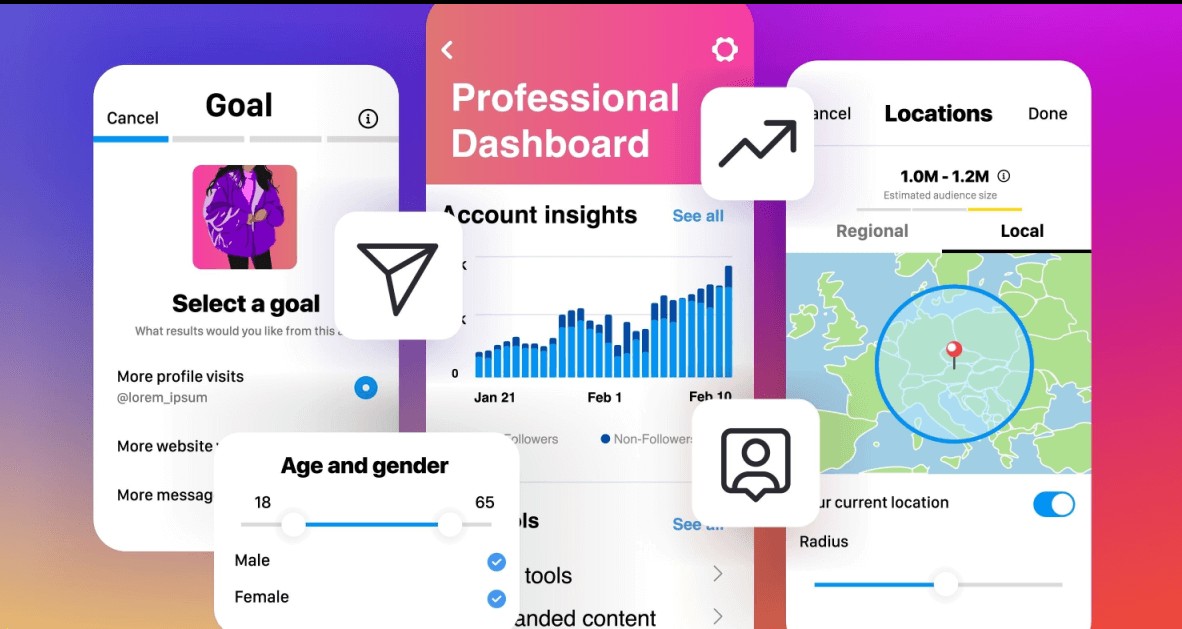
Account Overview: Reach, Impressions, Engagement
On the main Insights screen you’ll see high-level metrics for your account. Use the time range at the top (e.g. last 7 or 30 days) to compare different periods.
What is reach in Instagram Insights?
Reach is how many unique accounts saw your content in the selected period. One person counts once even if they saw five posts.
What are impressions in Instagram Insights?
Impressions is the total number of times your content was shown. So if one viewer watched the same Reel three times, that’s 1 reach and 3 impressions.
What is engagement in Instagram Insights?
Engagement covers likes, comments, saves, and shares. You may also see “Total likes,” “Profile visits,” “Website taps,” and similar. Higher engagement usually means people are responding to what you post. If reach and engagement go up after you post more Reels, that’s a useful signal.
Content Insights: Posts, Reels, Stories
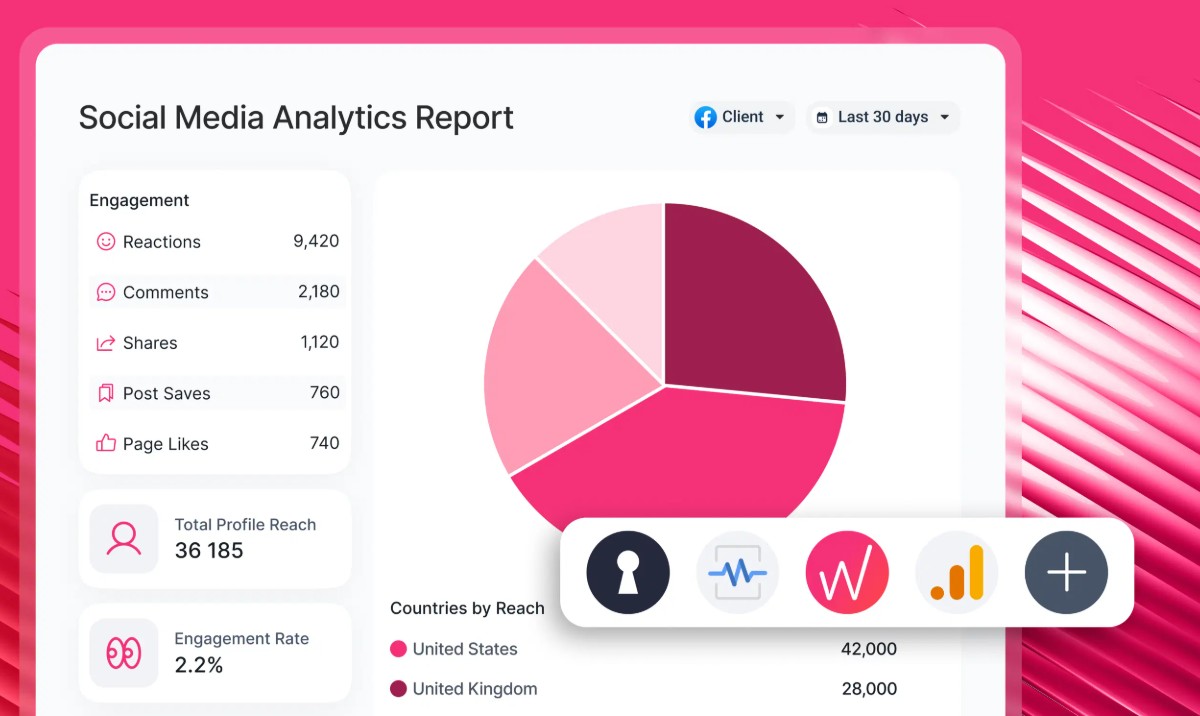
The Content tab breaks down performance by type. Tap any post or Reel to see its own numbers—reach, impressions, likes, comments, saves, shares. That makes it easier to spot what’s working. For the latest product behaviour, Instagram’s Insights overview and Reels help are the place to check.
Posts in Content Insights
Here you see which feed posts got the most reach, likes, comments, or saves. Handy for figuring out which formats and topics to lean into.
Reels in Content Insights
Play counts, reach, and engagement per Reel. Reels often drive the most discovery; try comparing different lengths and styles to see what holds attention.
Stories in Content Insights
Views, replies, and where people leave. Good for testing different openings and seeing where drop-off happens.
Audience Insights
The Audience section in Instagram Insights shows who your followers are and who interacted with your content. Data is aggregated and privacy-friendly; you don’t see individual users. If you don’t see a metric, it may be unavailable for your account or region.
Follower growth and demographics
Follower growth shows how many people followed or unfollowed in the selected period. Top locations are the countries and cities where your followers or viewers are—useful for timing and language. Age range and gender (when available) help you tailor content and messaging.
Most active times in Audience Insights
Insights shows when your followers are on Instagram. Use this to decide when to post; the app displays it under the Audience tab.
How to Use Instagram Insights to Grow
The numbers only help if you use them. You don’t need to check every day—a quick look every week or two is enough to spot patterns. For official definitions and any product changes, Instagram Help – Insights and professional account are the sources to trust.
Focus on what works
If Reels get more reach than feed posts, lean into Reels. If certain topics get more saves and shares, do more of that. Double down on what Insights shows is already working.
Post when your audience is active
The “Most active” times in the Audience tab tell you when your followers are on the app. Posting then can help more of them see your content.
Improve underperforming content
Compare low-reach posts to high-reach ones—hook, length, caption, hashtags—and try small changes. The Content tab makes it clear which posts or Reels are underperforming.
Track trends over time
Check the 7- and 30-day Overview every so often. A steady rise in reach or engagement usually means you’re on the right track.
Quick Reference: Instagram Insights Metrics
Here’s a short glossary of the main Instagram metrics you’ll see in Insights.
| Metric | Meaning |
|---|---|
| Reach | Unique accounts that saw your content |
| Impressions | Total times your content was shown |
| Engagement | Likes, comments, saves, shares |
| Saves | Number of times content was saved |
| Profile visits | Clicks to your profile from content |
| Content tab | Performance by post, Reel, Story |
| Audience tab | Who follows you and when they’re active |
About this guide
This page is based on Instagram’s current Insights product and its official help docs. Menu labels and which metrics you see can differ by account type, region, and app version. For the most up-to-date behaviour and definitions, always check Instagram Help – Insights. We revise this guide when Instagram changes the product.
How to read Instagram Insights: FAQ
Where do I find Instagram Insights?
Tap the menu (three lines) in the top right, then Insights. You can also open your profile and tap Insights below your bio. For a single post or Story, open it and tap View insights (or the insights icon).
What is the difference between reach and impressions on Instagram?
Reach is how many unique accounts saw your content. Impressions is how many times in total it was seen—so one person viewing a post three times is 1 reach and 3 impressions.
Do I need a business or creator account for Instagram Insights?
Yes. Instagram Insights is only for an Instagram professional account (Creator or Business). In the app: Settings and privacy → Account type and tools → Switch to professional account.
What does engagement mean in Instagram Insights?
It’s the sum of likes, comments, saves, and shares. Insights often breaks this down. In general, higher engagement means your content is resonating.
How far back does Instagram Insights go?
Account-level data usually shows the last 7 or 30 days; some metrics go to 90 days. Per-post and per-Reel insights stay available for that piece of content. Exact ranges depend on account and region.
Why don't I see Instagram Insights?
You need a professional account (Creator or Business). If you’ve just switched, wait a day or two for data to appear. Also check that the app is updated and you’re on your own profile.