How to Download TikTok Back on iPhone (Quick & Easy Guide)
If you’ve recently removed TikTok or it disappeared after an update, you’re not alone. Many iPhone users eventually need to reinstall the app to get back to their favorite videos, creators, and trends. Understanding how to download TikTok back on iPhone is simple once you know the correct steps — and this guide will walk you through the entire process clearly. Let’s get everything set up so you can return to scrolling and creating in no time.
Step-by-Step Instructions for Reinstalling TikTok on Your iPhone
To reinstall TikTok, all you need is access to the App Store and a stable internet connection. Follow these steps:
- Remove TikTok (if it’s still partially installed or corrupted).
- Open the App Store from your iPhone’s home screen.
- In the search bar, type “TikTok.”
- Tap the download icon or Get to reinstall TikTok on your iPhone.
- Once the app installs successfully, open it and log in to your account.
After these steps, TikTok will be ready to use again — just like before.
Additional Tips for Successfully Getting TikTok Back on Your Device
Once you complete the basic steps, most users are able to reinstall TikTok without any issues. Still, knowing a few extra details can help avoid common errors. When learning how to download TikTok back on iPhone, it’s important to check whether any restrictions on your device might be blocking the download. Screen Time limits, parental controls, or App Store restrictions can prevent the app from showing up or installing properly.
Another point to consider is your Apple ID region. If your account is set to a country where TikTok isn’t available, the App Store may hide the app entirely. Updating your region or switching temporarily can instantly solve this. Storage is another common factor—if your iPhone is low on space, TikTok may fail to install or stop midway through the download.
If you still can’t reinstall TikTok, try refreshing your App Store connection by signing out and signing back into your Apple ID. This simple reset often fixes hidden errors. These extra steps ensure you fully understand how to download TikTok back on iPhone and help you restore the app smoothly without unnecessary frustration.
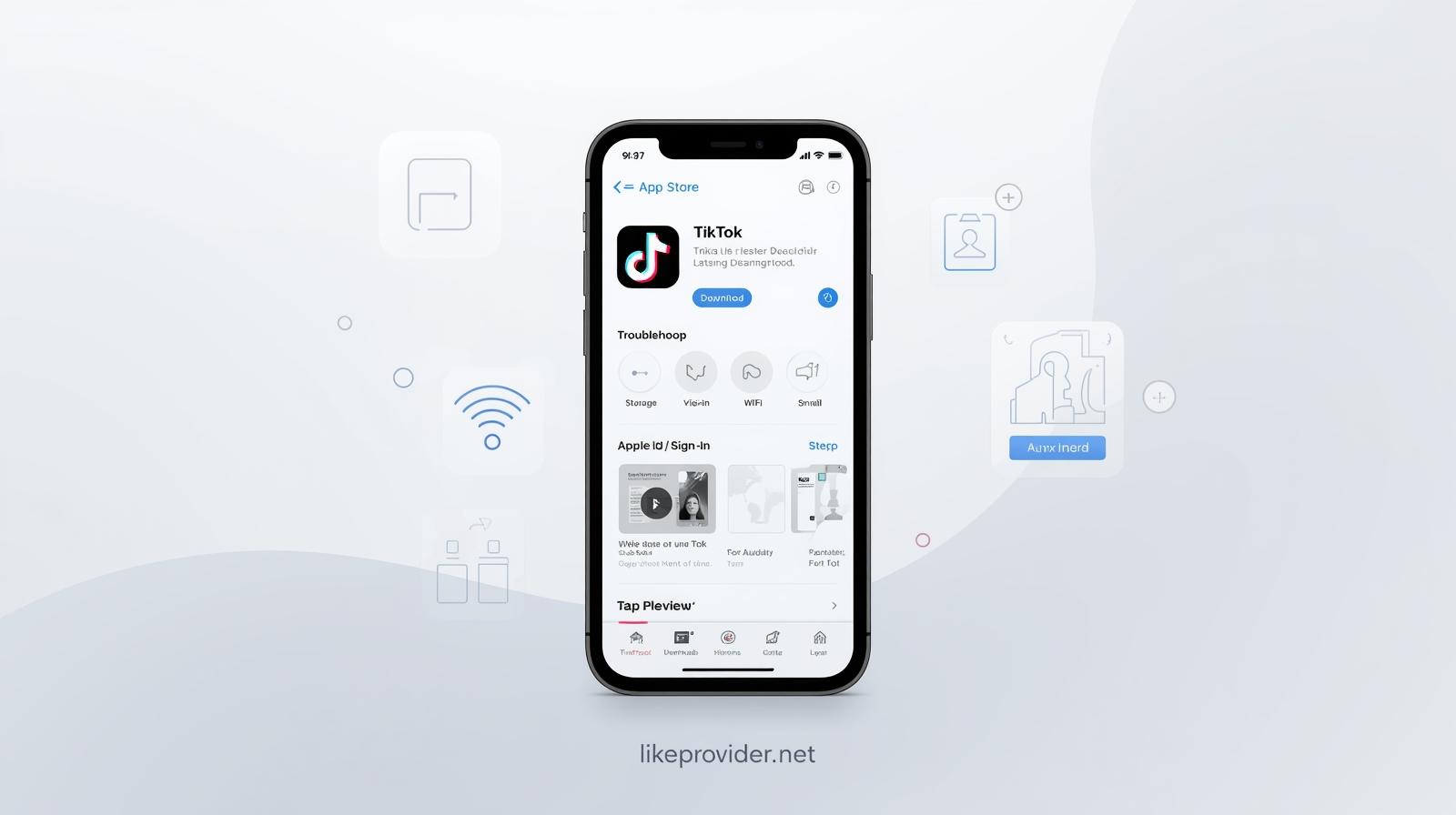
Troubleshooting Common Issues When Downloading TikTok Again
Sometimes, reinstalling doesn't go smoothly. If TikTok isn’t downloading, loading, or appearing in the App Store, try the following quick fixes:
- Update your iPhone software → Old versions may block app compatibility.
- Check your internet connection → Slow or unstable networks can interrupt downloads.
- Free up storage space → Large apps install only when enough space is available.
- Restart your device → Helps resolve temporary system glitches.
- Verify regional availability → In rare cases, TikTok may not appear in restricted regions.
Common Errors and Fixes
| Error | Possible Fix |
|---|---|
| App not found | Check App Store availability |
| Download failed | Ensure sufficient storage |
| Crashes on opening | Restart device and try again |
Ultimately, knowing how to restore TikTok on iPhone can help regain access swiftly. Maintain patience during setup, as periodic glitches are common.
If you need official troubleshooting steps directly from the source, you can also visit the TikTok Support Center for more detailed guidance.
Conclusion
Reinstalling TikTok on your iPhone is a simple process once you know where to look and which steps to follow. By learning how to download TikTok back on iPhone, you can quickly restore access to your favorite creators, trends, and content without losing any time. Just follow the instructions above, make sure your device is updated, and tap Get in the App Store — and you’re back in the fun instantly.
If you want to boost your account after reinstalling the app, you can also explore our guide on getting free TikTok followers.