Likeprovider Blog - SMM Panel News, Updates & Guides | Likeprovider.net

Likeprovider Blog

Latest news, updates, and tips about social media marketing

How to Download TikTok Back on iPhone (Quick & Easy Guide)

How to Download TikTok Back on iPhone (Quick & Easy Guide)

If you’ve recently removed TikTok or it disappeared after an update, you’re not alone. Many iPhone users eventually need to reinstall the app to get back to their favorite videos, creators, and trends. Understanding how to download TikTok back on iPhone is simple once you know the correct steps — and this guide will walk you through the entire process clearly. Let’s get everything set up so you can return to scrolling and creating in no time.

Step-by-Step Instructions for Reinstalling TikTok on Your iPhone

To reinstall TikTok, all you need is access to the App Store and a stable internet connection. Follow these steps:

  1. Remove TikTok (if it’s still partially installed or corrupted).
  2. Open the App Store from your iPhone’s home screen.
  3. In the search bar, type “TikTok.”
  4. Tap the download icon or Get to reinstall TikTok on your iPhone.
  5. Once the app installs successfully, open it and log in to your account.

After these steps, TikTok will be ready to use again — just like before.

Additional Tips for Successfully Getting TikTok Back on Your Device

Once you complete the basic steps, most users are able to reinstall TikTok without any issues. Still, knowing a few extra details can help avoid common errors. When learning how to download TikTok back on iPhone, it’s important to check whether any restrictions on your device might be blocking the download. Screen Time limits, parental controls, or App Store restrictions can prevent the app from showing up or installing properly.

Another point to consider is your Apple ID region. If your account is set to a country where TikTok isn’t available, the App Store may hide the app entirely. Updating your region or switching temporarily can instantly solve this. Storage is another common factor—if your iPhone is low on space, TikTok may fail to install or stop midway through the download.

If you still can’t reinstall TikTok, try refreshing your App Store connection by signing out and signing back into your Apple ID. This simple reset often fixes hidden errors. These extra steps ensure you fully understand how to download TikTok back on iPhone and help you restore the app smoothly without unnecessary frustration.


Troubleshooting Common Issues When Downloading TikTok Again

Sometimes, reinstalling doesn't go smoothly. If TikTok isn’t downloading, loading, or appearing in the App Store, try the following quick fixes:

  • Update your iPhone software → Old versions may block app compatibility.
  • Check your internet connection → Slow or unstable networks can interrupt downloads.
  • Free up storage space → Large apps install only when enough space is available.
  • Restart your device → Helps resolve temporary system glitches.
  • Verify regional availability → In rare cases, TikTok may not appear in restricted regions.

Common Errors and Fixes

ErrorPossible Fix
App not foundCheck App Store availability
Download failedEnsure sufficient storage
Crashes on opening          Restart device and try again


Ultimately, knowing how to restore TikTok on iPhone can help regain access swiftly. Maintain patience during setup, as periodic glitches are common.

If you need official troubleshooting steps directly from the source, you can also visit the TikTok Support Center for more detailed guidance.

Conclusion

Reinstalling TikTok on your iPhone is a simple process once you know where to look and which steps to follow. By learning how to download TikTok back on iPhone, you can quickly restore access to your favorite creators, trends, and content without losing any time. Just follow the instructions above, make sure your device is updated, and tap Get in the App Store — and you’re back in the fun instantly.

If you want to boost your account after reinstalling the app, you can also explore our guide on getting free TikTok followers.

Weiter lesen
How to Duet on TikTok With Others (Step-by-Step Guide)

How to Duet on TikTok With Others (Step-by-Step Guide)

Are you hoping to make your TikTok videos more engaging by collaborating with friends or other creators? Learning how to duet in tiktok with others is one of the easiest ways to interact, respond, or add your own style to existing content. Duets are fun, social, and incredibly effective for boosting creativity. In this guide, you’ll find a simple walkthrough that helps beginners and experienced users create duets confidently. Grab your phone—because with just a few taps, you can start producing content that feels more dynamic and collaborative.

Understanding TikTok Duets: A Quick Overview

TikTok Duets give users a creative space to interact with videos side-by-side, whether it's replying, adding commentary, or collaborating with another creator’s clip. This feature is especially popular among users who want to showcase skills or bring fresh personality into someone else’s video. If you're wondering how to duet in tiktok with others, here are a few key points to keep in mind:

  1. Connecting with Friends: You can explore how to duet in tiktok with friends to create shared, memorable content.
  2. User-Friendly Interface: TikTok makes the process simple by offering clear options for how to duet in tiktok with others easily.
  3. Creative Expression: Duets open up a space for unique interpretations, reactions, and collaborations.

Once you become comfortable with this feature, you'll find that it adds a new layer of expression to your TikTok experience and encourages more interaction with the community.

Step-by-Step Guide to Creating Your First Duet

If creating your first duet feels overwhelming—don’t worry, it’s actually very simple. Start by opening the video you’d like to duet with. Tap the icon that represents how to duet in tiktok with others step by step, and a menu will appear. Choose “Duet,” then make sure your camera and layout match the style you prefer. From here, you can play with reactions, add your own clips, or adjust the framing. When everything looks good, press “Record” and begin creating!

For complete beginners, following these steps makes the process of how to duet in tiktok with others for beginners smooth and enjoyable.


How to Duet in TikTok With Others: Step-by-Step Instructions

If you're trying to understand how to duet in TikTok with others in the simplest way possible, follow the steps below. These instructions are written so even a first-time user can complete the process easily.

1. Open the TikTok App

Start by launching the TikTok app on your device and make sure you're logged into your account.

2. Find the Video You Want to Duet With

Scroll your For You Page or visit a creator’s profile. Open the video you want to use for your duet.

3. Tap the “Share” Button

On the right side of the screen, tap the Share arrow icon. This will open TikTok’s interaction menu.

4. Select the “Duet” Option

From the menu, choose Duet. If you don’t see it, the creator may have disabled duets for that video.

5. Choose Your Layout

TikTok will show layout options such as side-by-side, green-screen, or reaction mode. Pick the style that best matches your idea.

6. Record Your Part

Press the Record button and start filming your side of the duet. You can speak, react, dance, sing, or add any creative twist you want.

7. Edit Your Duet

After recording, use TikTok’s editing tools. You can add text, effects, filters, stickers, or adjust the sound levels to balance both videos.

8. Add a Caption and Hashtags

Write a simple caption and include relevant hashtags. Avoid hashtag stuffing—just 2–3 strong tags can help your video reach the right audience.

9. Post Your Duet

When everything is ready, hit Post. Your duet will now appear on your profile and can be discovered by others on TikTok.

Quick Tips

  • Make sure the lighting and audio in your recording are clear.
  • Watch the original video first so your reactions or timing match well.
  • Collaborate with friends or creators who already engage with your content for better reach.

Best Practices for Collaborating with Other Users

Collaboration can significantly elevate your content by bringing in new ideas, perspectives, and styles. To get the most out of learning how to duet in TikTok with others, start by communicating clearly with the person you’re collaborating with—especially if you're planning something coordinated. Share your ideas, discuss the tone, and make sure both sides feel comfortable with the creative direction.

It’s also helpful to understand each other’s strengths. Some people are expressive, some are funny, others are great at transitions or lip-syncing. Combining these strengths makes the final duet more engaging. Don’t be afraid to try new styles or formats; experimenting keeps your content fresh and helps attract more viewers.

Exploring Creative Ideas for Engaging Duets

When thinking about how to duet in TikTok with others, creativity is what keeps viewers watching. You can experiment with different styles—maybe harmonizing over a song, reacting to a funny clip, or adding your own twist to a trending challenge. Playing with transitions, facial expressions, or humorous dialogue can make your side of the duet stand out. Trending audio is another great tool for sparking attention, encouraging collaborations beyond your usual circle. Seasonal challenges, themed content, or spontaneous ideas can also lead to fresh and memorable duets. The main goal is simple: connect with others and create something that feels fun and engaging for both you and your audience.

If you need additional technical details about duet settings or privacy options, you can also check the official TikTok Help Center for more guidance.


Promoting Your Duets: Tips for Maximizing Reach

To make your duets reach more people, think strategically about how you share them. Start by posting your duets across different platforms where your audience already engages. Choose hashtags that genuinely match your content—using fewer but more relevant tags can actually improve visibility. Interact actively with viewers through comments and messages; these personal touches help spark interest and keep people coming back. Another powerful tactic is collaborating with creators who have similar audiences. When you duet together, both sides benefit as followers discover new accounts and new content styles.

Conclusion

To sum it up, discovering how to duet on TikTok with others gives you endless possibilities for creativity, interaction, and growth. Whether you’re collaborating with a friend or discovering a new creator you admire, duets make TikTok feel more dynamic and personal. By applying the steps and tips in this guide, you’ll be able to join the duet trend confidently, express yourself freely, and build stronger connections within the TikTok community. So grab your phone, pick a sound that inspires you, and start creating—collaboration often leads to the most unforgettable videos.

If you’re looking to boost visibility after posting your duet, you can also explore our guide on getting free TikTok views to help your videos reach a wider audience.

Weiter lesen
How to Clear Facebook Cache on iPhone, Android, and Desktop

How to Clear Facebook Cache on iPhone, Android, and Desktop

In today’s digital world, keeping your online activity smooth and responsive is more important than ever—especially on platforms like Facebook. Over time, stored data can pile up and slow things down, causing lag, glitches, or unexpected behavior. That’s why understanding how to clear Facebook cache can make a big difference in how the app or browser performs. Whether you're on a phone or desktop, knowing this process helps ensure a cleaner, faster experience when scrolling through your feed. In this guide, we'll walk you through everything you need—from how to clear Facebook cache on mobile, to how to clear Facebook cache on desktop, and even how to clear facebook cache in app, making the whole process simple and stress-free.

Understanding Cache: What It Is and Why It Matters

Cache works as a temporary storage system that saves certain data so apps and websites can load faster the next time you open them. It’s helpful for performance, but if too much outdated data builds up, it can do the opposite—slowing things down or causing errors. This is common with apps that run daily, such as Facebook. To keep your device working smoothly, you may want to learn how to clear facebook cache on mobile or figure out how to clear facebook cache on desktop when things feel sluggish. In some cases, checking how to clear facebook cache in app is also a smart move to keep everything optimized.

Step-by-Step Guide to Clear Facebook Cache on iPhone

Clearing the Facebook cache on an iPhone can noticeably improve how the app runs, especially if it has been acting slow. Start by opening your phone’s Settings. Scroll down and tap Facebook. Depending on your iOS version, you’ll see options related to storage, cache, or data usage. If the layout looks different, don’t worry—these menus often change with updates. After adjusting the relevant settings, relaunch the app and, if needed, take a quick look at how to clear facebook cache and cookies to make sure everything resets properly.


How to Do It: Step-by-Step Guide to Clear Facebook Cache

  1. Open your device settings.
    Start by going to the main Settings menu on your phone or desktop browser.
  2. Find the Facebook app or browser section.
    On mobile, open Apps / Applications and select Facebook.
    On desktop, open your browser’s History or Privacy settings.
  3. Go to the storage or data options.
    Mobile devices usually show Storage or App Info, where cache data is listed.
  4. Tap “Clear Cache.”
    Select the option to remove temporary files. This does not delete your account or personal data.
  5. Restart the app or browser.
    Close Facebook completely and reopen it to apply the changes.
  6. Test the performance.
    Scroll around, refresh your feed, and check if everything loads faster.

How to Clear Facebook Cache on Android Devices

If you want to know how to clear Facebook cache on Android, the process is straightforward. Open Settings, then enter the Apps or Applications section. Find Facebook in the list, tap it, and then choose Storage. Here, you’ll see the option to clear cache. One tap will remove temporary data and free up space, often improving performance immediately. Just remember: this might log you out, so make sure you know your password before you begin how to clear facebook cache on your device.

For more detailed information directly from Facebook, you can also review the official guidelines provided by the Facebook Help Center.

Clearing Facebook Cache on Desktop: A Comprehensive Approach

To successfully clear Facebook cache on a desktop browser, you’ll need to access your browser’s history or privacy settings. Look for options that allow you to delete cached images and files. Once selected, confirm the action and let the browser clear everything out. The exact location of these settings may differ depending on whether you're using Chrome, Firefox, Edge, or another browser. If you're ever unsure, searching for specific instructions can help ensure you’re following the right steps for your setup.


Tips to Optimize Your Facebook Experience Post Cache Clearing

Once you’ve learned how to clear Facebook cache, you can take a few extra steps to make your overall Facebook experience even better. Start by adjusting your news feed preferences so the posts you care about appear first, helping you cut through unnecessary clutter. You can also revisit Facebook’s privacy settings to fine-tune what you share and who sees it, giving you more control over your account. Finally, try using the search bar more intentionally—it can uncover content or pages you may have missed before, making your Facebook browsing feel fresher and more personalized.

After clearing your cache and refreshing your Facebook experience, you might also want to grow your audience — you can check out our trusted free Facebook followers tool to get more real followers for your profile.

Weiter lesen
How to Unblock YouTube on Any Device in 2025 (Step-by-Step Guide)

How to Unblock YouTube on Any Device in 2025 (Step-by-Step Guide)

In today’s online world, it’s not unusual to run into situations where platforms like YouTube become restricted—sometimes by schools, workplaces, or even certain countries. Knowing how to unblock YouTube gives you the freedom to watch your favorite videos, access tutorials, or use the platform for learning without interruptions. Whether you’re trying to bypass a school filter or simply access YouTube while traveling, this guide breaks everything down into simple, practical methods that work on any device. With the right tools and a few quick adjustments, you’ll be able to get back to the full YouTube experience in no time.

Main Points

This guide highlights the most effective ways to regain access to YouTube, including:

  1. Using VPNs: A clear look at how virtual private networks hide your location and help you get around restrictions.
  2. Proxy Servers: An explanation of how these intermediaries let you browse YouTube without running into blocks.
  3. Browser Extensions: A breakdown of simple add-ons that can enable quick access.
  4. Modifying DNS Settings: A straightforward walkthrough on adjusting your DNS for unrestricted browsing.
  5. Mobile Solutions: Tips for unblocking YouTube on your phone or tablet so you can stay connected wherever you are.

Each approach is designed to offer a balance of convenience and effectiveness, helping you enjoy a smoother, uninterrupted YouTube experience.

Understanding YouTube Restrictions: A Comprehensive Overview

Running into YouTube blocks can be frustrating, especially when you’re simply trying to watch videos or access information. These restrictions usually appear because of geographic rules, school or workplace policies, or specific network settings. To deal with these limitations more effectively, it helps to understand what’s causing them in the first place.

People often look up how to unblock youtube at school, while others search for practical ways on how to unblock youtube on wifi when a local network prevents access. If you're exploring different solutions, here are a few common methods worth considering:

  1. VPN Services: Secure your connection and hide your IP.
  2. Proxy Websites: Reach YouTube through intermediary sites.
  3. Browser Extensions: Install tools built specifically to bypass barriers.

From my perspective, learning how to unblock youtube in my country can give you more control over your online experience and let you view content without unnecessary limits.

Step-by-Step Guide to Unblocking YouTube on Various Devices

Although the steps may vary slightly depending on what device you're using, the general process stays fairly consistent. One of the most reliable approaches is understanding how to unblock YouTube with the help of a VPN, which encrypts your traffic and lets you choose a region where YouTube is open. Once installed, you just pick a server and you’re good to go.

If you’re on a phone or tablet, you might also need tips on how to unblock YouTube on mobile, since apps can be installed directly for quick access. And if you're on a budget, you may want to explore options on how to unblock YouTube for free, as many proxies and tools don’t require payment.


How to Do It: Step-by-Step Guide to Unblock YouTube

  1. Check your connection first.
    Sometimes YouTube is blocked only on certain Wi-Fi networks. Try switching to mobile data to see if it loads.
  2. Use a VPN app.
    Install any trusted VPN, open it, choose a region where YouTube is accessible, and connect. This is the fastest method for anyone searching how to unblock YouTube.
  3. Try a proxy website.
    If you don’t want to install apps, open a web-based proxy, paste the YouTube link, and browse through the proxy window.
  4. Install a browser extension.
    Add-ons like unblockers or privacy tools can bypass filters on Chrome, Firefox, or Edge with one click.
  5. Change your DNS settings.
    Switch to free DNS providers (Google DNS or Cloudflare) to remove basic network restrictions that may block YouTube.
  6. Use an unblocker app on mobile.
    On Android or iOS, download unblock apps from the store to restore access instantly without extra settings.
  7. Restart and test again.
    After trying any method, refresh your browser or restart your device to ensure YouTube loads properly.

Top VPNs and Proxies to Unblock YouTube Safely in 2025

As online restrictions continue to evolve, the importance of reliable tools grows as well. VPNs and proxies remain among the most popular choices for anyone trying to regain access to YouTube from different locations. Some users may question how to unblock YouTube without a VPN, and while there are alternative methods, they aren’t always as secure or consistent.

Beyond bypassing restrictions, VPNs also add extra layers of privacy—making them a preferred method for many. No matter which option you choose, taking the time to compare features and security levels will help you find the best and safest solution for your needs.

Key Considerations

When selecting a VPN, look for features like speed, reliability, and user-friendliness. Some services claim to specialize in how to unblock YouTube access without compromising security. However, convenience often plays a significant role, so consider the trade-offs, as not all methods are equally effective.

Troubleshooting Common Issues When Accessing YouTube

Accessing YouTube can sometimes be frustrating due to various technical issues. You might encounter problems like a buffering video, or perhaps you can't seem to log in. First, check your internet connection; it's often the simplest solution. If you're trying to learn how to unblock youtube, consider adjusting your network settings. Additionally, ensure your browser is up to date, as outdated versions can lead to malfunctions. If all else fails, resetting your device can often help resolve lingering issues.

You can also check the official guidelines directly from the YouTube support page if you want to understand why certain regions block access.

Common Issues and Solutions

Issue     Solution
Slow Streaming     Check your bandwidth and limit other downloads.
Login Problems     Reset your password or clear cache.
Blocked Access     Use VPN services or check firewall settings.

Best Practices for Maintaining Online Privacy While Unblocking YouTube

If you want to stay safe online while exploring how to unblock YouTube, it’s important to use tools that protect your personal data. A dependable VPN is one of the strongest options, as it encrypts your traffic and helps prevent third parties from monitoring your activity. Beyond that, simple habits—such as clearing your browser cache—add an extra layer of protection.

Be especially careful when relying on public Wi-Fi, since those networks often lack proper security and can expose your information. Staying updated on the privacy settings of the platforms you use also gives you more control over your digital footprint. By combining these best practices, you can strengthen your security and maintain better privacy whenever you're looking into how to unblock YouTube.


Conclusion

To sum it up, learning how to unblock YouTube can greatly improve your overall online experience, no matter which device you prefer. By applying the techniques in this guide, you’ll be able to reach content that may have previously been restricted. Choose the method that fits your situation best—whether that’s a VPN, a browser extension, or adjusting your DNS settings.

Keep in mind that some solutions perform better depending on your region, network, or circumstances. Whatever path you take, using these approaches will help you enjoy your favorite videos and channels without interruption. Happy watching!

Frequently Asked Questions

Why is YouTube blocked in certain regions?

YouTube may be blocked in certain regions due to government regulations, content restrictions, or local laws that restrict access to online platforms.

What methods can I use to unblock YouTube?

You can unblock YouTube by using a VPN, a proxy server, or by changing the DNS settings on your device.

Are there any risks associated with using a VPN to access YouTube?

While using a VPN can help you bypass restrictions, it is essential to use a reputable service to ensure your data remains secure and your privacy is protected.

Can using a proxy server slow down my YouTube streaming?

Yes, using a proxy server can sometimes slow down your connection, affecting the quality of your streaming experience on YouTube.

Is unblocking YouTube against the law?

It depends on the laws of your country. While it may be legal in some regions to use tools to access blocked sites, in others it may violate local regulations, so it's crucial to understand the laws in your area.

If you want to boost your engagement after restoring access, you can try our trusted free YouTube likes tool to help your videos reach a wider audience.

Weiter lesen
How to Change YouTube Name (Step-by-Step Guide for 2025)

How to Change YouTube Name (Step-by-Step Guide for 2025)

If you’re thinking about refreshing your online presence, updating your YouTube name is one of the simplest ways to give your channel a fresh identity. A new name can make your brand more memorable, align better with the content you create, or simply feel more “you.” In this guide, you’ll learn how to change YouTube name smoothly on both mobile and desktop, without affecting your existing content, audience, or channel performance.

Let’s walk through everything step by step.

Understanding YouTube's Naming Policies: Best Practices for 2025

YouTube continues to refine its platform, and naming guidelines play a key role in how your channel is discovered. Understanding these rules will help you pick a name that is clear, relevant, and easy for viewers to remember.

Here are a few helpful best practices:

  1. Choose a name that matches the tone and style of your content.
  2. Keep it clear and concise—avoid long, keyword-stuffed names.
  3. Test different ideas through your account settings to see what feels right.

By taking a strategic approach to how to change YouTube name, you can strengthen your branding and meet audience expectations more effectively.

A Step-by-Step Tutorial for Updating Your YouTube Channel Name

Changing your name might seem complicated at first, but the process is actually very straightforward. Whether you're on mobile or desktop, the steps are nearly identical.

Here’s the quick rundown:

  1. Open YouTube and log into your channel.
  2. Go to your YouTube Studio or profile settings.
  3. Select Edit Channel or Channel Name.
  4. Enter your new name and confirm the changes.

That’s it—your new name will update across your channel. If you want a smooth transition, it’s a good idea to let your followers know beforehand. This helps avoid confusion and keeps your community connected to your brand.

Before making changes to your channel, you can also review YouTube’s official guidelines on channel customization through the YouTube Help Center at for the most up-to-date information.


How to Do It: Step-by-Step Guide

Learning how to change youtube name is quick and simple once you know where to look. Here’s the exact process you can follow on both mobile and desktop:

  1. Sign in to your YouTube account.
    Open YouTube and make sure you're logged into the channel you want to edit.
  2. Go to Your Channel or YouTube Studio.
    Click your profile picture, then select Your Channel or access YouTube Studio for more detailed settings.
  3. Open the Edit Channel section.
    Find the option labeled “Edit Channel” or “Channel customization.”
  4. Select the Name field.
    Tap on Channel Name to open the editable field.
  5. Enter your new name.
    Type the new channel name you want to use. Keep it short, clear, and memorable.
  6. Save the changes.
    Hit Save or Confirm to apply your new name across your channel.
  7. Check your updates.
    Refresh your channel to make sure the new name is visible everywhere.

This is the fastest way to understand how to change youtube name without losing any data or affecting your videos, subscribers, or performance.

Conclusion

Updating your YouTube name is an easy and effective way to refresh your channel’s identity. After following the steps in this guide, you can confidently choose a name that reflects who you are and what you create. Remember: your channel name is often the first impression viewers get—so choose something meaningful, clear, and long-term.

Whenever you feel like rebranding again, you now know exactly how to change your YouTube name quickly and safely. Embrace the change, keep improving, and let your creativity lead the way.

 If you’re looking to boost your channel’s visibility after updating your name, you can also try our trusted free YouTube views tool to attract more real engagement and help your content reach a wider audience.

Weiter lesen
How to Use Telegram Without a Phone Number (Complete 2025 Guide)

How to Use Telegram Without a Phone Number (Complete 2025 Guide)

In today’s digital world, concerns around privacy and security are stronger than ever. Because of this, many people wonder whether it’s actually possible to use Telegram without sharing a phone number. Telegram is known for its mix of fast messaging, strong encryption, and flexible features—but the platform usually requires a number to register, which can be a deal-breaker for those who want to stay a bit more anonymous.

The good news is that there are alternative ways to access Telegram without using your personal number. In this telegram without phone number guide, you’ll learn several practical methods that let you create or use an account without revealing your real line. Whether your goal is extra privacy, a cleaner separation between work and personal life, or simply avoiding spam, you’ll find helpful tips throughout this article.

Understanding Telegram's Single Account Requirement and Alternatives

Telegram is designed to link each account to a single phone number. This helps with verification, recovering access, syncing devices, and preventing spam accounts. But it also leads many users to look for different options—especially those who prefer not to share their personal number online.

Fortunately, using Telegram without a phone number is still possible if you rely on alternative verification methods. These solutions allow you to receive the login code without exposing your personal mobile line. Some common options include:

  1. Virtual Phone Services – Online tools that provide temporary or cloud-based numbers for verification.
  2. Landline Verification – Telegram can send a voice call to confirm your account.
  3. Using a Friend’s or Spare Number – A trusted friend or a secondary SIM can help with the initial setup.

Each method has its own advantages and drawbacks, so it’s important to choose the one that matches your privacy expectations and long-term usage needs.

Methods to Create a Telegram Account Without a Phone Number

Setting up a Telegram account without using your personal phone number might sound complicated at first, but there are actually several practical ways to do it. One of the most common approaches is taking advantage of virtual or temporary phone number services, where you can receive verification codes without exposing your real line.

Some users also prefer using Telegram through the desktop app or Telegram Web, especially when they want to stay more anonymous. This naturally leads to the question many people ask: how to register Telegram without a phone number. If privacy is your priority, exploring these options can be incredibly helpful.


Key Considerations

Before diving into the different methods of using Telegram anonymously without a phone number, it’s important to understand the potential trade-offs. While these alternatives can help you stay more private, each method comes with its own pros and cons—especially when it comes to reliability and long-term account security.

That said, choosing to access Telegram without a phone number is still a valid solution for anyone who prefers not to share their main contact information or simply wants an extra layer of separation for personal messaging.

Using Virtual Phone Numbers for Telegram Registration

Virtual phone numbers have become one of the most popular choices for creating a Telegram account without phone number verification. These numbers—available through specialized apps and websites—provide a convenient, privacy-friendly alternative to using your primary SIM.

They work by allowing you to receive the SMS or voice code required during registration. However, it's important to stay cautious. Not all virtual number providers are equally reliable, and some may fail to deliver verification messages on time. Taking a moment to check reviews or confirm a service’s credibility can save you from registration issues later.

Exploring Temporary Phone Number Services for Telegram Access

In today’s digital landscape, using a temporary phone number to access Telegram has gained traction. These services allow users to register or verify accounts without revealing their personal information. However, the choice of service can greatly affect your experience. Therefore, it’s essential to consider factors like reliability, cost, and ease of use. A few popular options include:

  1. Service X: Offers competitive pricing and a user-friendly interface.
  2. Service Y: Renowned for its quick delivery of numbers.
  3. Service Z: Provides multiple country options, increasing flexibility.

Exploring these options may reveal more about how to use Telegram without a phone number, as some services offer additional tips to enhance privacy.

If you want to explore Telegram’s official policies and verification rules in more detail, you can also check the guidelines on the Telegram FAQ page.

Setting Up Telegram on Multiple Devices Without a Phone Number

To enjoy the benefits of Telegram on various devices, you may wonder how to use Telegram without a phone number. Fortunately, there are a few methods available. First, you might consider using the Telegram desktop app, allowing for device syncing where you can log in without needing a traditional phone setup. However, bear in mind that an initial connection to the app using a phone number is still required. Therefore, explore the app settings to familiarize yourself with alternative verification techniques. This way, you can extend your messaging capabilities to several platforms comfortably.


Privacy Considerations When Using Telegram Without a Phone Number

While exploring how to use Telegram without a phone number, privacy remains a paramount concern. By bypassing the phone number verification, users often rely on alternative registration methods, which could introduce potential risks. For instance, while some methods may enhance anonymity, they could also lead to unexpected data exposure. Therefore, it's vital to be aware of the implications, including possible tracking and data leaks, which could impact overall security on the platform.

Key Privacy Factors

Factor      Impact
Anonymity      Varying degrees of exposure depending on method
Data Security      Potential risk of leaks with third-party apps

Troubleshooting Common Issues When Using Telegram Without a Phone Number

Using Telegram without a phone number can present various challenges. If you find yourself facing issues, consider these tips:

  1. Account Verification: Ensure that your account is properly set up, as verification might require alternative methods, like an email.
  2. Contact Syncing: Sometimes, syncing issues arise. Make sure your contacts are correctly imported from your existing accounts.
  3. Notification Problems: If you miss messages, check your notification settings; they may not be enabled for your account type.

These steps can help clarify some common hurdles, allowing you to enjoy the app more seamlessly.

Conclusion

In conclusion, learning how to use Telegram without a phone number opens up a world of possibilities for staying connected while maintaining your privacy. This guide has outlined various methods, explaining how simple steps can help you create an account securely and effectively. Although some options may require a bit more effort, the benefits of anonymity and accessibility make it worthwhile. Whether you’re looking to chat, share files, or join groups, exploring these techniques allows you to enjoy Telegram's features without the need for a phone number. Embrace these strategies, and experience a more private messaging journey.

If you’re looking to grow your Telegram community while setting up your account, you can also take a look at our detailed guide on free Telegram members here.

Weiter lesen
How to Change Instagram Password (Step-by-Step & Updated 2025 Guide)

How to Change Instagram Password (Step-by-Step & Updated 2025 Guide)

In today’s digital world, keeping your online accounts secure is more important than ever. Updating your Instagram password regularly helps strengthen your privacy, protect your data, and prevent unauthorized access. This guide explains How to Change Instagram Password in a simple, human-friendly way—whether you're using a phone or computer.
If you're ready to update your password safely and quickly, follow the step-by-step instructions below.

1. Understanding the Importance of a Strong Instagram Password

A strong Instagram password acts as your first shield against unwanted access. With online threats constantly evolving, choosing a secure password is essential for protecting your personal information. When changing your password, keep these factors in mind:

  1. Length: Longer passwords are harder to guess.
  2. Diversity: Use a mix of letters, numbers, and special symbols.
  3. Uniqueness: Don’t reuse the same password across different platforms.

Because of this, knowing How to Change Instagram Password is crucial for long-term safety. Whether you want to Change Instagram Password easily or learn How to Change Instagram Password on mobile, taking action early can prevent potential risks.

2. Step-by-Step Guide to Resetting Your Password on Instagram

Changing your password on Instagram only takes a moment. Open the Instagram app and tap the “Forgot password?” option—Instagram will guide you through recovery steps based on your email or phone number.

If you're asking How to Change Instagram Password without old password, Instagram allows you to verify your identity using the contact details linked to your account.
For users already logged in, you can also update your password through the settings menu.
No matter which method you choose, updating your password regularly is a smart way to boost your account security.


3. Utilizing Two-Factor Authentication for Enhanced Security

Two-factor authentication (2FA) is one of the most effective ways to strengthen your online protection. By requiring a second verification step—such as a code sent to your phone—it adds an extra safeguard beyond your regular password. Although some users may find this extra step slightly inconvenient, the security benefits are far greater than the minor effort it takes.

If your goal is to keep your account fully protected, enabling 2FA is a smart and proactive move. It’s especially valuable when thinking about how to change Instagram password securely and maintain long-term account safety.

Conclusion

In short, enabling two-factor authentication not only improves your security but also gives you peace of mind. This additional layer becomes even more important during key moments such as learning how to change Instagram password and managing your personal data responsibly.

4. Common Mistakes to Avoid When Changing Your Instagram Password

Changing your Instagram password is an important part of account safety, but many users unknowingly make simple mistakes along the way. One common issue is choosing a weak or predictable password, which makes unauthorized access much easier.

Another frequent mistake is forgetting to log out from other devices after updating your password—this can leave your account exposed. Additionally, many users skip updating their recovery email or phone number, which causes problems if they ever need to reset their password again.

To ensure everything goes smoothly, stay aware of these pitfalls and take a few extra moments to double-check your settings.

5. How to Recover Your Account If You Forget Your Password

If you ever get locked out of your Instagram account, don’t worry—there are several ways to regain access. Start by visiting the login screen and tapping the Forgot Password option. Instagram will ask for your email, username, or phone number to verify your identity.

You’ll then receive an email containing a recovery link or instructions. Make sure to check your spam folder if the email doesn’t appear right away.
If your Instagram is connected to another service (such as Facebook), recovery may be even faster. Keeping your recovery details updated ensures you always have a reliable way back into your account.

6. Best Practices for Managing and Storing Passwords Safely

Keeping your passwords secure is essential for protecting your online accounts. A simple way to stay safe is by using password managers, which can create and store strong, complex passwords on your behalf. Whenever possible, make sure to enable two-factor authentication for an extra layer of protection.

You should also avoid passwords that can be easily guessed—such as birthdays, pet names, or common words. Regularly updating your passwords is a smart habit, even if many people wonder how often it’s necessary. In reality, stronger and frequently refreshed passwords greatly reduce the chances of unauthorized access or potential data breaches.


How to Change Instagram Password (Quick Steps)

  1. Open Instagram on your phone or desktop.
  2. Go to Profile → Menu → Settings → Accounts Center.
  3. Tap Password and Security.
  4. Select Change Password.
  5. Enter your current password, then create a new, strong password.
  6. Tap Save to update.

If you don’t remember your old password, use “Forgot Password?” on the login screen and reset it via email or phone.

If you need additional guidance during the process, you can also check Instagram’s official Help Center article for password assistance here.

Conclusion

Changing your Instagram password is a simple but powerful step toward improving your account’s security. By following the methods in this guide, you ensure that your personal information stays protected and harder to compromise. Updating your password regularly also helps prevent unauthorized logins and strengthens your digital safety overall.

At the end of the day, understanding how to change Instagram password gives you better control over your online presence and supports safer social media habits. Stay proactive, choose a password that’s strong yet still easy for you to remember—and difficult for others to guess. By doing this, you can use Instagram with more confidence and peace of mind.

If you want to improve your Instagram visibility while securing your account, you can also check out our guide for free Instagram story views.

Weiter lesen
How to Schedule Instagram Posts (2025 Guide for Beginners)

How to Schedule Instagram Posts (2025 Guide for Beginners)

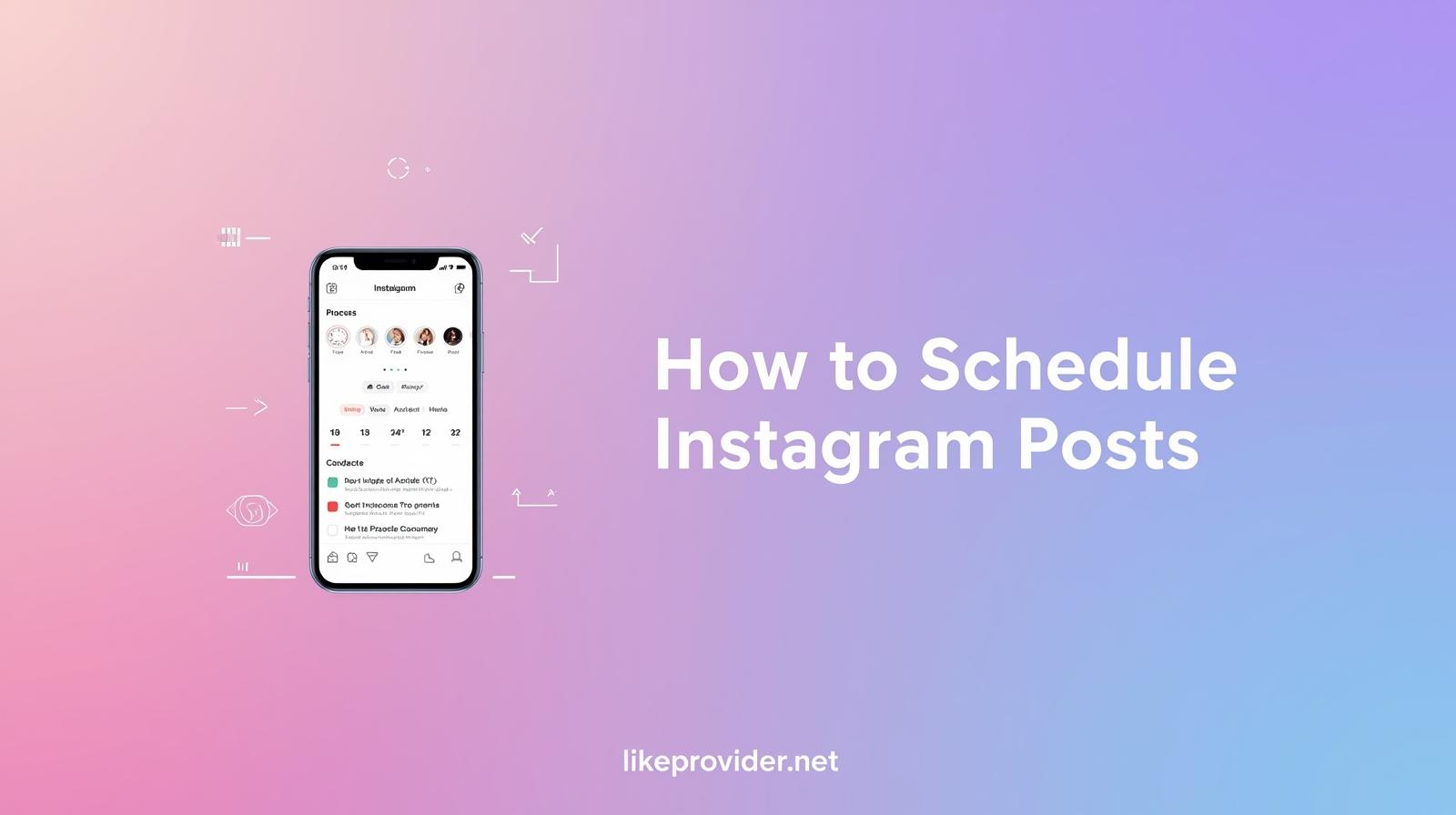
In today’s fast-moving digital world, staying consistent on Instagram is harder than it looks. Most people want to post regularly but simply don’t have the time to create and share content every single day. That’s exactly why learning how to schedule Instagram posts has become such a valuable skill. When you know how to prepare your content ahead of time, you free yourself from daily posting pressure and make sure your audience always sees something fresh from you.

Scheduling your Instagram posts also gives you more control over when your content goes live. Instead of posting randomly, you can plan for the moments when your audience is most active. With this approach, you get better engagement, stronger visibility, and a smoother workflow overall. Whether you’re building a personal brand, running a small business, or simply trying to grow your online presence, scheduling tools make everything easier and more organized.

Understanding the Importance of Scheduled Posts for Instagram Growth

Consistency is one of the biggest factors behind Instagram growth. When you understand how to schedule Instagram posts properly, you remove the guesswork and create a reliable posting rhythm. That reliability helps your audience remember you, interact with your content more often, and ultimately trust your brand. Posting in advance isn’t just convenient—it directly impacts your reach and engagement.

Here’s why scheduling is so powerful:

  1. Consistency: A steady posting routine keeps your followers interested and increases your chances of appearing in their feeds.
  2. Better Time Management: Instead of rushing to create content at the last minute, you can prepare everything when you’re focused and inspired.
  3. Stronger Planning: Scheduling makes it easier to build cohesive themes, campaigns, and content strategies.

When you learn how to schedule Instagram posts for business, you can shape a more professional, curated profile that speaks directly to your target audience. This not only builds trust but also strengthens your brand identity and helps you grow steadily over time.


Guide to Using Instagram Scheduling Tools

Scheduling tools can make your entire Instagram workflow faster and far more organized. Start by picking a tool that matches what you need—some offer advanced analytics, while others focus purely on simple scheduling. Once you’ve chosen your platform, upload your photos or videos and write your captions just like you normally would.

When learning how to schedule Instagram posts using apps, make sure you’re selecting times when your audience is usually active. This small detail can noticeably boost engagement. It also helps to pair your posts with the right hashtags to reach new viewers. After your content goes live, check your analytics to see what performed well. These insights will guide you toward how to schedule Instagram posts for maximum engagement in the future..

How to Do It: Step-by-Step Breakdown

Learning how to schedule Instagram posts is simple once you understand the process. Here’s a clear, actionable guide that anyone can follow:

1. Choose a Scheduling Tool That Fits Your Needs

Start by selecting a platform like Meta Business Suite, Later, Buffer, or any app you prefer. Each tool offers different features such as analytics, auto-posting, hashtag suggestions, or drag-and-drop planners. Pick the one that makes your workflow easier.

2. Upload Your Photos or Videos

After choosing your tool, upload the content you want to schedule. Make sure your visuals are high quality, on-brand, and sized correctly for Instagram feed, reels, or carousel posts.

3. Write Your Caption and Add Hashtags

Craft a caption that feels natural and engaging. Add relevant hashtags to boost discoverability. Most scheduling tools let you save hashtag groups — use that to save time.

4. Select the Date and Time to Publish

This is the core part of learning how to schedule Instagram posts. Choose a posting time when your audience is most active. If you’re unsure, check your Instagram insights to find out when your followers are online.

5. Preview Your Post Before Scheduling

Look at the final preview to make sure your caption, spacing, emojis, and images look exactly how you want them to appear on Instagram.

6. Hit Schedule and Let the Tool Handle the Rest

Once you tap “Schedule,” your post is fully automated. No need to log in or manually publish at a specific time — the tool will do it for you.

7. Track Analytics After the Post Goes Live

After your scheduled posts are published, monitor reach, likes, saves, comments, and impressions. This helps you refine the strategy and understand which times and formats perform best.

Best Practices for Crafting Engaging Instagram Content Ahead of Time

If you want your posts to stand out, planning ahead is essential. Knowing how to schedule Instagram posts isn’t just about timing—it’s also about crafting content that feels intentional and cohesive. Use planning tools to map out your visual style and message so your feed has a consistent look.

Think about themes, trending topics, or recurring formats that your audience connects with. At the same time, stay flexible so you can adapt to new trends. Captions that feel genuine paired with strong visuals can dramatically improve engagement, helping you build a deeper connection with your audience.

Tips for Scheduling

Make it a habit to review your old posts to spot patterns—what time performs best, which format gets the most interaction, and which topics your audience prefers. Becoming good at how to schedule Instagram posts takes a bit of practice, but once you get into the routine, you’ll notice more consistent engagement and a smoother content strategy overall.

Planning is important, but don’t forget to adjust your schedule based on real-time feedback and analytics. The more you refine your approach, the easier it becomes to keep your Instagram presence strong and consistent.

How to Analyze Performance Metrics of Scheduled Instagram Posts

To understand how well your scheduled Instagram posts are performing, start by reviewing the core engagement signals. Check the likes and comments first—these give you a quick sense of how people are reacting to your content right away. After that, look at reach and impressions to see how widely your posts are being shown over time.

It’s also useful to compare different posting times and content formats to spot what your audience responds to most. This kind of data isn’t just for measuring success; it also helps you adjust and improve your future scheduling strategy. The more you study your analytics, the easier it becomes to refine how you schedule Instagram posts for stronger results.

If you’re trying to boost your visibility even further while planning your content, you can also check out our guide on free Instagram shares to strengthen your overall engagement strategy.

Tips for Aligning Your Instagram Strategy with Seasonal Trends

Seasonal trends can give your Instagram strategy a major boost if you use them the right way. Take some time to look at older posts or past campaigns to see how content performed during specific seasons. This helps you understand what your audience cares about at different times of the year.

Using seasonal hashtags can also increase visibility and attract users who are actively searching for timely topics. Just make sure you stay true to your brand’s style and voice while incorporating trending ideas. Blending in with seasonal content is great for reach, but authenticity is what keeps your audience engaged in the long run.

Conclusion

Mastering how to schedule Instagram posts gives you more freedom, more consistency, and more impact on your social media presence. With the right tools and a clear plan, you can keep posting regularly without feeling overwhelmed by daily content tasks.

Scheduling your posts also allows you to be more creative—you can try new ideas, experiment with different formats, and stay ahead of trends while still maintaining a polished, organized feed. So go ahead and build your schedule, trust your analytics, and enjoy the benefits of a streamlined Instagram strategy that grows and engages your audience over time.

If you need official guidance while learning how to schedule Instagram posts, you can also check the detailed instructions on the Meta Business Help Center for the most up-to-date information.
Weiter lesen
Optimal Instagram Posting Time: The Best Hours to Post for Maximum Engagement

Optimal Instagram Posting Time: The Best Hours to Post for Maximum Engagement

In today’s digital world, social media has become one of the strongest channels for connecting brands with their audiences. Knowing the optimal instagram posting time can make a noticeable difference in your engagement and overall visibility. Many studies show that sharing your posts at the right moment leads to higher interaction rates and better reach.
Because of this, understanding when your followers are most active is essential if you want to get the most out of Instagram. In this article, we’ll break down practical strategies to pinpoint the best posting hours and share helpful insights for both individuals and businesses looking to strengthen their online presence.

Understanding Audience Behavior: Analyzing Peak Engagement Times

Truly connecting with your audience starts with understanding their activity patterns. Taking the time to analyze when they are online the most can reveal your ideal optimal instagram posting time. Research consistently shows that engagement levels shift depending on factors like age, interests, and even where your audience is located.
With that in mind, applying the following optimal instagram posting time tips can make identifying those high-engagement moments much easier:

  1. Time Zones: Always consider where your audience is based and when they are most likely to be active.
  2. Content Type: Each type of post—Reels, photos, carousels—can perform differently at different hours.
  3. Analytics Tools: Use insights and analytics to spot the times when your posts consistently receive the strongest interactions.

Ultimately, finding the best optimal instagram posting time isn’t a one-time task—it changes as your audience grows and your content evolves. But once you understand those patterns, you can significantly increase your visibility and strengthen your Instagram presence.


The Impact of Time Zones on Instagram Engagement: A Global Perspective

Time zones play a much bigger role in Instagram engagement than most people realize, which is why optimal instagram posting time analysis is so important. To maximize your reach, you need to understand when your audience is actually online—especially if they’re spread across multiple regions. People in different parts of the world scroll at different hours, and this directly affects how your posts perform.

By learning how to find optimal instagram posting time, brands can shape their posting strategy with far more precision. For companies, identifying the optimal instagram posting time for businesses can lead to stronger interactions and even better conversion rates, ultimately building a smoother and more connected digital experience.

Utilizing Instagram Insights: Tools to Determine Your Optimal Posting Time

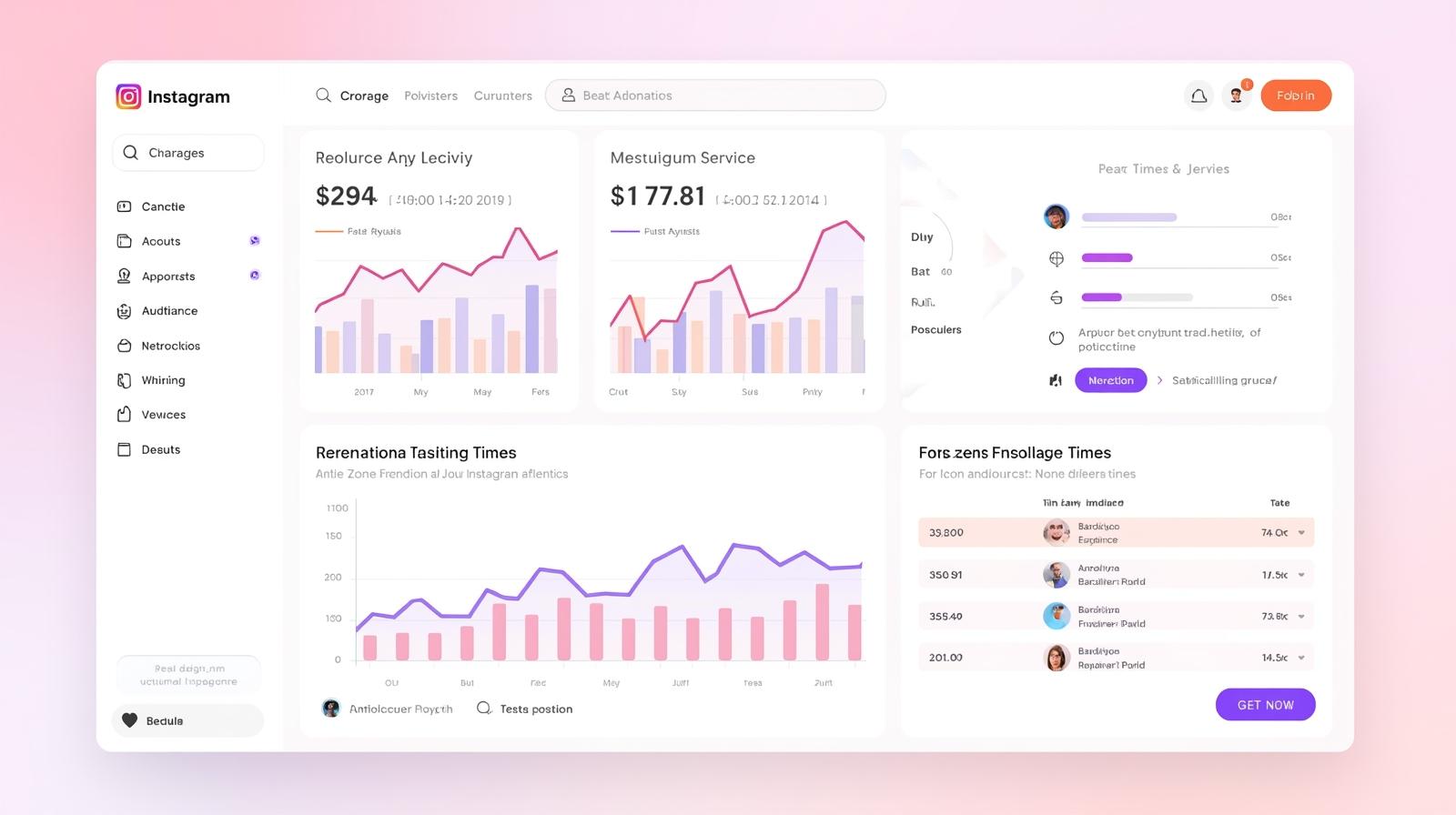
Knowing your audience’s behavior is essential when aiming for higher engagement. With Instagram Insights, you get a clear view of when your followers are most active. The tool breaks down activity by day and hour, helping you spot patterns that point to your optimal Instagram posting time.

Trying out various posting hours can uncover consistent viewer habits and help you understand what your audience responds to best. Use this information to fine-tune your strategy so you can consistently hit that ideal posting window—boosting both visibility and interaction at the moments that matter the most.

Strategic Scheduling: Creating a Posting Calendar for Consistent Engagement

Establishing a systematic approach to your content strategy is vital for achieving consistent engagement. A well-crafted posting calendar helps identify the optimal Instagram posting time, allowing you to reach your audience when they are most active. Consider plotting your schedule based on audience insights, peak engagement hours, and even seasonal trends. Regularly review analytics and adjust your calendar accordingly to keep your strategy fresh and relevant while ensuring maximum visibility.

Influence of Content Type on Optimal Posting Times: What Works Best?

Having a structured and reliable content plan is one of the easiest ways to maintain strong engagement. A smartly organized posting calendar helps you pinpoint your optimal Instagram posting time, allowing you to share content exactly when your audience is most active.

When planning, consider your audience insights, peak engagement hours, and even seasonal behavior patterns. Keep reviewing your analytics and adjusting your schedule as needed. This ensures your posting strategy stays fresh, relevant, and aligned with the times your content is most likely to be seen—helping you maintain maximum visibility over the long term.

you want to explore Instagram’s own recommendations, you can also check the official Instagram Help Center for additional tips and platform guidelines.


Conclusion

In summary, finding the optimal Instagram posting time can noticeably improve your engagement and help you build a stronger connection with your audience. When you understand your followers’ behavior and pay attention to factors such as time zones and peak activity periods, you can shape your content strategy for far better results.

It’s important to remember that there isn’t a universal formula that works for everyone. Testing different posting times and reviewing your engagement data will give you the clearest insights into what resonates with your audience. Stay flexible, keep refining your timing, and use each post as an opportunity to improve.

Ultimately, succeeding on Instagram is about creating meaningful, consistent interactions with your followers—interactions that feel natural, timely, and genuinely engaging.

If you want a quick engagement boost before posting, you can try getting free Instagram likes to increase your visibility.

Weiter lesen
How to Hide Facebook Friends List (Quick & Easy 2025 Guide)

How to Hide Facebook Friends List (Quick & Easy 2025 Guide)

In today’s digital age, privacy has become a priority for many users on social media platforms, including Facebook. You may wish to limit who can see your connections and maintain control over your personal information. This guide will explore How to Hide Facebook Friends List effectively. Whether you want to adjust the settings to keep your friends list private from the general public or just from specific people, we’ll provide you with quick and easy steps to ensure your online presence stays secure. Understanding the different options available for How to Hide Facebook Friends List completely or even just on your profile can help you navigate your privacy with confidence.

Understanding the Importance of Privacy on Facebook

In today's digital world, safeguarding your privacy on platforms like Facebook is crucial. Many users often overlook how their personal information can be accessed by others. Therefore, understanding How to Hide Facebook Friends List from others becomes vital to maintaining control over your connections. You may wonder, what are the steps involved? Additionally, knowing How to Hide Facebook Friends List on mobile is equally important, especially as mobile usage increases. Adjusting your How to Hide Facebook Friends List settings ensures only trusted individuals access your details.

Step-by-Step Guide to Accessing Your Friends List Settings

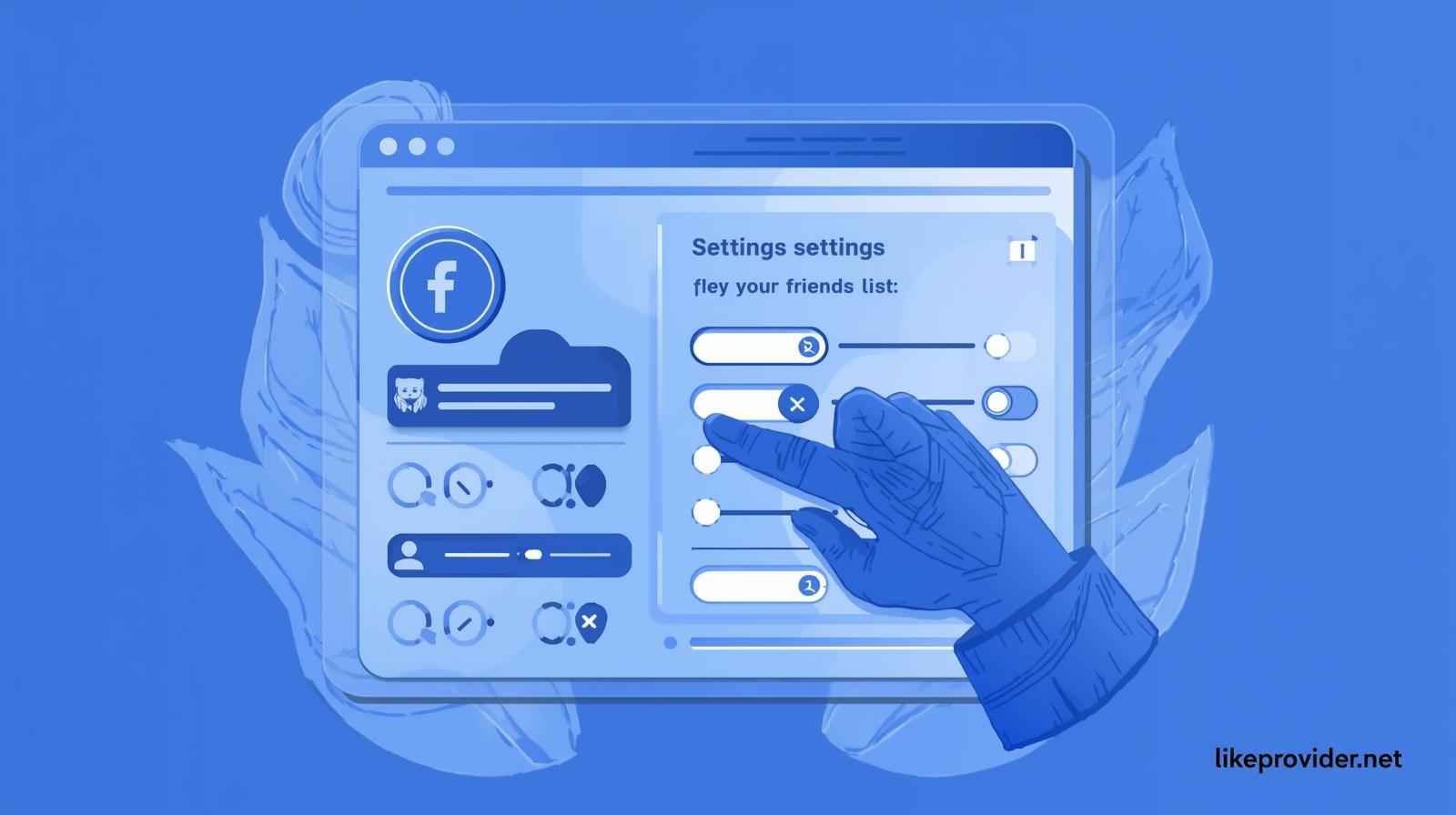
To adjust your privacy on Facebook, start by navigating to your profile. Click on your profile picture and select the ‘Friends’ tab. Here, you’ll see options for adjusting visibility. If you're wondering How to Hide Facebook Friends List from specific people, select 'Edit Privacy.' For those interested in How to Hide Facebook Friends List completely, choose 'Only Me.' This allows you to control who sees your connections. Alternatively, learn How to Hide Facebook Friends List on profile by adjusting settings under 'Privacy Shortcuts.'

How to Hide Facebook Friends List (Step-by-Step Instructions)

Hiding your Facebook friends list is a simple way to protect your privacy and limit who can see your social connections. Whether you want more control over your personal information or you simply prefer a more private profile, the steps below will help you update your settings quickly and easily.

1. Open Facebook and Go to Your Profile

Start by opening the Facebook app or visiting Facebook on your browser. Tap your profile photo in the top-right corner to access your personal page.

2. Navigate to “Settings & Privacy”

Tap the Menu (three horizontal lines), scroll down, and select Settings & Privacy, then choose Settings.

3. Go to the “Privacy” Section

Inside Settings, locate and tap Privacy. This is where Facebook stores all visibility and audience controls for your posts, profile, and friends list.

4. Find “Who Can See Your Friends List?”

Scroll until you find the option labeled “Who can see your friends list?”
This setting determines whether everyone, friends, or only you can view your full list.

5. Choose Your Preferred Privacy Setting

Select one of the following:

  • Only Me → completely hides your friends list
  • Friends → only your Facebook friends can see it
  • Specific Friends → show it only to selected people
  • Custom → create your own visibility rules

For maximum privacy, choose “Only Me.”


6. Save and Exit

Once you select the option you prefer, Facebook saves it automatically. Your friends list is now hidden based on your chosen setting.

Adjusting Your Privacy Settings: Who Can See Your Friends List

Updating your privacy settings is one of the simplest ways to take control over who can view your personal information on Facebook. If you want to keep your social connections more private, learning How to Hide Facebook Friends List is a great starting point. Facebook gives you several options, allowing you to limit visibility to only friends, specific groups, or even just yourself.

This flexibility makes it easy to protect certain connections, but it’s also good to remember that some people may still see mutual friends depending on their own settings. For that reason, it’s helpful to review your privacy preferences from time to time to make sure they match the level of visibility you’re comfortable with.

Utilizing Custom Friend Lists for Enhanced Privacy

Custom friend lists offer an extra layer of control when it comes to your privacy on Facebook. By creating personalized groups, you can decide exactly who sees certain posts, stories, or updates. This allows you to share more personal content with close friends while keeping it hidden from others, giving you a better sense of security.

Managing these lists can feel a bit confusing at first, especially if you have many connections, but once you organize them, the benefits are huge. You gain clearer control over your audience, reduce accidental oversharing, and create a more intentional, private experience on the platform.

How to Limit Your Friends List Visibility for Specific Audiences

If you're wondering how to hide Facebook friends list from certain people, the process is quite straightforward. Start by navigating to your privacy settings, where you can customize who sees your friends list. Here, you can select options like "Only Me" for complete privacy or choose specific audiances for a more tailored approach. However, remember that even with these settings, mutual friends may still be visible to others. Therefore, consider each selection carefully.

For official instructions, you can also visit the Facebook Help Center.

Troubleshooting Common Issues When Hiding Your Friends List

When attempting to hide your friends list, users may encounter several common issues. Firstly, ensure that your privacy settings are correctly configured; sometimes new updates can reset these preferences unexpectedly. Furthermore, if your friends are still visible to others, it's possible that some might have their settings allowing the visibility of mutual friends. Always double-check visibility settings, and remember, these can often change without notice on social platforms.


Conclusion

In conclusion, learning how to hide your Facebook friends list gives you more control over your privacy and helps you manage how much of your profile others can see. Once you understand where the settings are and how they work, adjusting them becomes incredibly straightforward.

Taking a moment to update these options allows you to decide exactly who can view your social connections, creating a more comfortable experience on the platform. At the end of the day, your Facebook account should match the level of privacy you prefer. With just a few quick changes, you can protect your personal space and share your friends list only with the people you truly want.

If you’re looking for the best social-media growth tools, you can also check out our best SMM panel for fast and reliable services.

Weiter lesen