How to Stitch on TikTok (2026 Guide) – Enable & Use Stitch Feature
Learn how to Stitch on TikTok step by step: enable the Stitch feature, create Stitch videos, and fix common issues. This 2026 guide covers how to enable Stitch on TikTok, how to use Stitch on TikTok, and what to do when TikTok Stitch is not working. Pair with our TikTok video downloader, TikTok bio generator, TikTok trending hashtags, Instagram Reels caption generator, best time to post on Instagram, free TikTok followers, and free TikTok likes.
What You'll Find on This Page
If you're looking for how to Stitch on TikTok or how to enable Stitch on TikTok, you're in the right place. On this page you'll find:
- What Stitch on TikTok is – Definition and how it differs from Duet.
- How to enable the Stitch feature – Who can Stitch your videos and how to turn Stitch on or off.
- How to use Stitch step by step – From opening a video to posting your Stitch video.
- Stitch vs Duet – When to use each and how they differ.
- Fix common issues – Why TikTok Stitch is not working or TikTok Stitch feature not showing, and how to fix it.
- FAQ – Quick answers on how to Stitch on TikTok, enable Stitch, and Stitch problems.
Use the table of contents to jump to the section you need. For more TikTok growth, see our TikTok bio generator, TikTok trending hashtags, and free TikTok followers.
What You Will Learn to Do
This guide helps you do the following. By the end, you will be able to:
- Use Stitch on someone else's video – Open a TikTok video, tap Share, tap Stitch, choose up to 5 seconds of the clip, record your part, and post your Stitch video.
- Enable or disable Stitch for your own videos – Before posting, set "Who can Duet/Stitch" to Everyone, Friends, or Off so others can or cannot Stitch your content.
- Tell the difference between Stitch and Duet – Know when to use Stitch (clip + your video in one) vs Duet (side-by-side).
- Fix Stitch not showing or not working – Understand why the Stitch button is missing or grayed out, and what to do (update app, try another video, check settings).
If you only want the shortest path: go to Before You Start, then How to Use Stitch Step by Step. For full context, read from the top. Use our TikTok video downloader and TikTok trending hashtags when you post your Stitch.
Before You Start: What You Need
To use Stitch on TikTok, you need:
- TikTok app installed and updated – On your phone, open the App Store (iOS) or Google Play (Android), search for TikTok, and tap Update if an update is available. An outdated app may not show the Stitch option or may cause TikTok Stitch not working.
- A video that allows Stitch – You can only Stitch videos where the creator has turned on Stitch. When you tap Share on a video, you should see Stitch in the menu. If Stitch is grayed out or missing, that video does not allow Stitch; try another video.
- If you want others to Stitch your videos – When you post your own video, set "Who can Duet with this video" / "Who can Stitch with this video" to Everyone (or Friends) before you tap Post. If you set it to Off, no one can Stitch that video.
Quick check: Open TikTok, tap any video, tap the Share arrow on the right. Do you see Stitch in the list? If yes, you can use Stitch on that video. If not, the creator has disabled it—try another video or read Fix Common Stitch Issues. For more TikTok tools, see our TikTok bio generator and free TikTok followers.
What Is Stitch on TikTok?
Stitch on TikTok is a feature that lets you clip a short segment (up to 5 seconds) from someone else's video and combine it with your own video. You record your part before or after the clip, so your Stitch video can be a reply, a reaction, or a continuation. How to Stitch on TikTok is one of the most searched TikTok how-tos because Stitch is great for reactions, tutorials, and remixes.
The TikTok Stitch feature is different from Duet: Duet shows two videos side by side; Stitch inserts a clip from the original video into your video. To enable Stitch for others to use your content, you allow it in your video's privacy settings. To use Stitch on TikTok, you tap Share on a video that has Stitch enabled, then tap Stitch. For more TikTok tools, use our TikTok video downloader, TikTok bio generator, and TikTok trending hashtags.
How to Enable Stitch on TikTok
Enable Stitch on TikTok for your own videos so others can Stitch them. When you create a video and are on the post screen, tap Who can Duet with this video or Who can Stitch with this video (the wording may say "Duet/Stitch"). Set it to Everyone if you want anyone to Stitch; set to Friends or Off to limit or disable Stitch. So how to enable Stitch on TikTok from the creator side: before posting, open the Duet/Stitch setting and choose Everyone, Friends, or Off.
If you are the viewer and want to use Stitch on TikTok, you do not "enable" Stitch on your account—you just tap Stitch on videos that have Stitch allowed. If TikTok Stitch feature not showing or the Stitch button is grayed out, the creator has turned off Stitch for that video. For more TikTok growth, pair Stitch content with our TikTok trending hashtags, free TikTok followers, and free TikTok likes.
How to Use Stitch on TikTok Step by Step
Follow these steps for how to Stitch on TikTok step by step (2026). Each step tells you what to do and what you will see on screen.
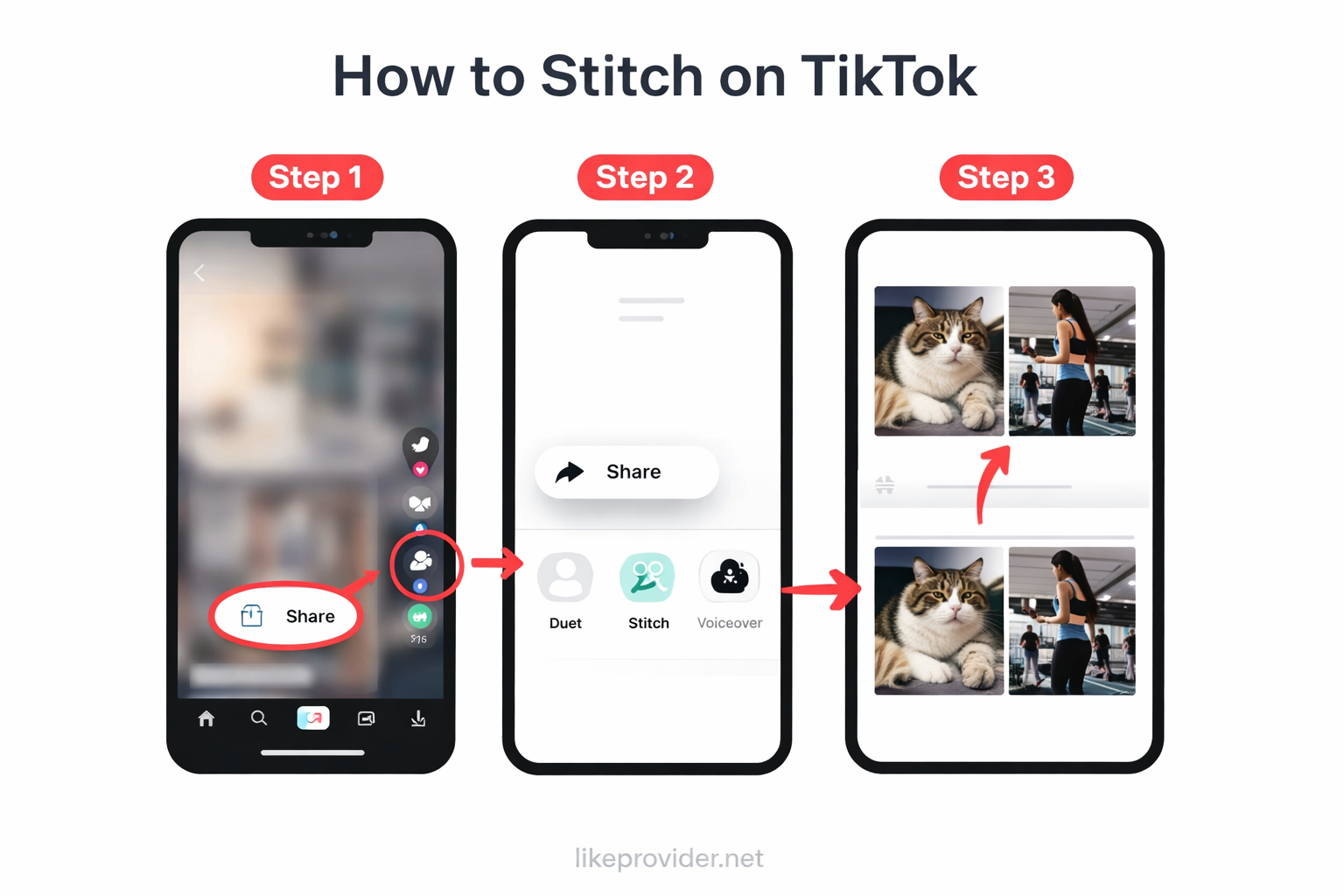
- Open TikTok and find a video – Open the TikTok app and go to the video you want to Stitch. On the right side of the video you will see several icons (heart, comment, Share, etc.). Tap the Share button (arrow or paper plane icon). What you will see: A menu will open with options like Copy link, Duet, Stitch, and others.
- Tap Stitch – In the share menu, tap Stitch. If you don't see Stitch, the creator has disabled it for that video, or your app may need an update (go to Fix Common Stitch Issues). What you will see: The app will open the Stitch editor. You will see the original video and a timeline or slider to choose which part to use.
- Select the clip (up to 5 seconds) – Use the slider or timeline to choose up to 5 seconds of the original video. You can choose whether your recording will appear before or after this clip. When you are done, tap Next. What you will see: The camera screen will open so you can record your part.
- Record your video – Record your part. You can record once or in segments. The final Stitch video will show the original clip and your recording in one video. What you will see: After recording, you will see a preview and can re-record or continue to the next step.
- Edit and post – Add sounds, text, or effects if you want. Write a caption and add hashtags (use our TikTok trending hashtags for ideas). Tap Post to publish your Stitch. What you will see: Your Stitch will upload and then appear on your profile and in the feed. The original video will be linked so viewers can tap through to it.
That's how to do Stitch on TikTok and how to make Stitch on TikTok. If TikTok Stitch not working, see the Fix Common Stitch Issues section below. For more reach, use our TikTok bio generator and free TikTok followers.
Stitch vs Duet on TikTok: What's the Difference?
TikTok Stitch vs Duet: Stitch lets you take a short clip (up to 5 seconds) from another video and add your own video before or after it, so the result is one combined video. Duet shows the original video and your video side by side in a split screen. Both are in the Share menu; the creator can allow or disable each separately.
Use Stitch when you want to react to a specific moment, continue a story, or remix a short part of someone's video. Use Duet when you want to perform alongside the original (e.g. duet singing or dancing). How to Stitch on TikTok and how to Duet are similar: tap Share, then choose Stitch or Duet. For more TikTok tools, see our TikTok video downloader and TikTok trending hashtags.
Fix Common Stitch Issues (TikTok Stitch Not Working)
If TikTok Stitch is not working or TikTok Stitch feature not showing, try these fixes:
- Stitch option grayed out or missing – The video creator has disabled Stitch for that video. You can only Stitch videos that have Stitch enabled. Try another video that allows Stitch.
- App outdated – Update TikTok from the App Store (iOS) or Google Play (Android). Stitch TikTok 2026 and latest features require the newest app version.
- Stitch button not there at all – Check that you're tapping the Share button (arrow) on the right. Stitch is in the same menu as Duet and other share options. If you still don't see it, the creator may have Stitch off, or your region/account may have limits.
- Stitch fails when posting – Check your internet connection, clear TikTok cache (Settings > Free up space), or restart the app. If the problem continues, try again later or with a different video.
That's how to stitch TikTok fix the most common TikTok Stitch problems. For more TikTok growth, use our TikTok bio generator, TikTok trending hashtags, free TikTok followers, and free TikTok likes.
Stitch Tips & Best Practices
To get the most from how to Stitch on TikTok:
- Pick a strong 5-second clip – You only get up to 5 seconds from the original. Choose the moment that best sets up your response or punchline.
- Allow Stitch on your videos when it makes sense – If you want more engagement and remixes, set Duet/Stitch to Everyone on videos you're okay with others using.
- Use trending sounds and hashtags – Pair your Stitch with TikTok trending hashtags and popular sounds to improve discoverability.
- Credit the original creator – Stitch automatically links to the original video; keep that context so the algorithm and viewers understand the remix.
For more growth, combine Stitch content with our TikTok bio generator, free TikTok followers, free TikTok likes, and TikTok video downloader.
Quick Checklist: Did I Do It Right?
Use this checklist to confirm you completed the Stitch flow correctly:
- I tapped Share – On the video I want to Stitch, I tapped the Share (arrow) button on the right.
- I saw and tapped Stitch – Stitch was visible in the menu (not grayed out). I tapped Stitch.
- I chose up to 5 seconds – I used the slider to select the part of the original video I want. I tapped Next.
- I recorded my part – I recorded my video. The preview shows the original clip + my recording.
- I added caption and hashtags – I wrote a caption and added hashtags (e.g. from our TikTok trending hashtags).
- I tapped Post – My Stitch uploaded and now appears on my profile.
If something in this list did not happen (e.g. you never saw Stitch), go to Fix Common Stitch Issues or FAQ. If you want to allow others to Stitch your videos, before posting your own video set "Who can Duet/Stitch" to Everyone or Friends. For more TikTok growth, use our free TikTok followers and free TikTok likes.
FAQ: How to Stitch on TikTok
What is Stitch on TikTok?
Stitch on TikTok is a feature that lets you clip up to 5 seconds of someone else's video and add it to your own video. You record your part before or after the clip. It is different from Duet, which shows two videos side by side.
How do I enable Stitch on TikTok?
You do not enable Stitch for your own account. The original video's creator must allow Stitch in their video settings. To use Stitch, open a video, tap Share, then tap Stitch. If Stitch is grayed out, the creator has disabled it for that video.
Why don't I see the Stitch option on TikTok?
If you don't see Stitch, the creator may have turned off Stitch for that video. Or your app may be outdated. Update TikTok from the App Store or Google Play. Some regions or account types may have limited access.
What is the difference between Stitch and Duet on TikTok?
Stitch lets you use a short clip (up to 5 seconds) from another video and add your own video before or after it. Duet shows the original video and your video side by side. Both are under the Share menu.
How long can the Stitch clip be?
You can use up to 5 seconds of the original video in a Stitch. You choose the segment when you tap Stitch and trim the clip. Your total Stitch video can be up to the usual TikTok length limit (e.g. 10 minutes for some accounts).
Can I Stitch any TikTok video?
No. The creator must allow Stitch for that video. If they have disabled Stitch in their settings, the Stitch option will not appear when you tap Share. You can only Stitch videos that have Stitch enabled.
How do I turn off Stitch for my TikTok videos?
When you post a video, go to the privacy/settings before posting. You can set who can Duet or Stitch with your video: Everyone, Friends, or Off. Set Stitch to Off if you don't want others to Stitch your content.
Why is my TikTok Stitch not working?
Stitch may not work if the creator disabled it, your app is outdated, or there is a temporary bug. Update TikTok, try another video that has Stitch enabled, and check your internet connection. If it still fails, try restarting the app or device.