How to Cancel YouTube TV Subscription (Step-by-Step Guide)
If you’re thinking about pausing or ending your streaming service, you’re not alone. Many users adjust their subscriptions due to budget planning or changing viewing habits. For this reason, knowing how to cancel YouTube TV subscription is an important step in managing monthly entertainment costs. This guide explains the entire process clearly, helping you complete it without confusion or unnecessary steps.
Understanding Your YouTube TV Subscription
YouTube TV offers live television channels, on-demand content, and optional add-ons through a monthly subscription model. While this flexibility appeals to many users, it may not always align with long-term viewing habits. When usage decreases or priorities change, understanding how your subscription works helps you decide whether continuing or cancelling is the right choice.
If you’re researching how to cancel youtube tv subscription, it’s important to know that the process is handled directly through your account and does not require contacting customer support.
Cancel vs Pause: Which Option Is Better for You?
Before cancelling, some users consider pausing their membership instead. Cancelling fully stops billing and ends the subscription, while pausing temporarily suspends charges for a set period. If you expect to return soon, pausing may be more suitable. However, if you no longer need the service, cancelling is the cleaner option.
Accessing Your Account Settings
Start by signing in to your YouTube TV account using a web browser or the official app. Once logged in, click your profile icon in the top-right corner. This menu contains all account-related controls, including membership and billing options.
This is the first step in any cancel youtube tv subscription guide.
Opening the Membership Section
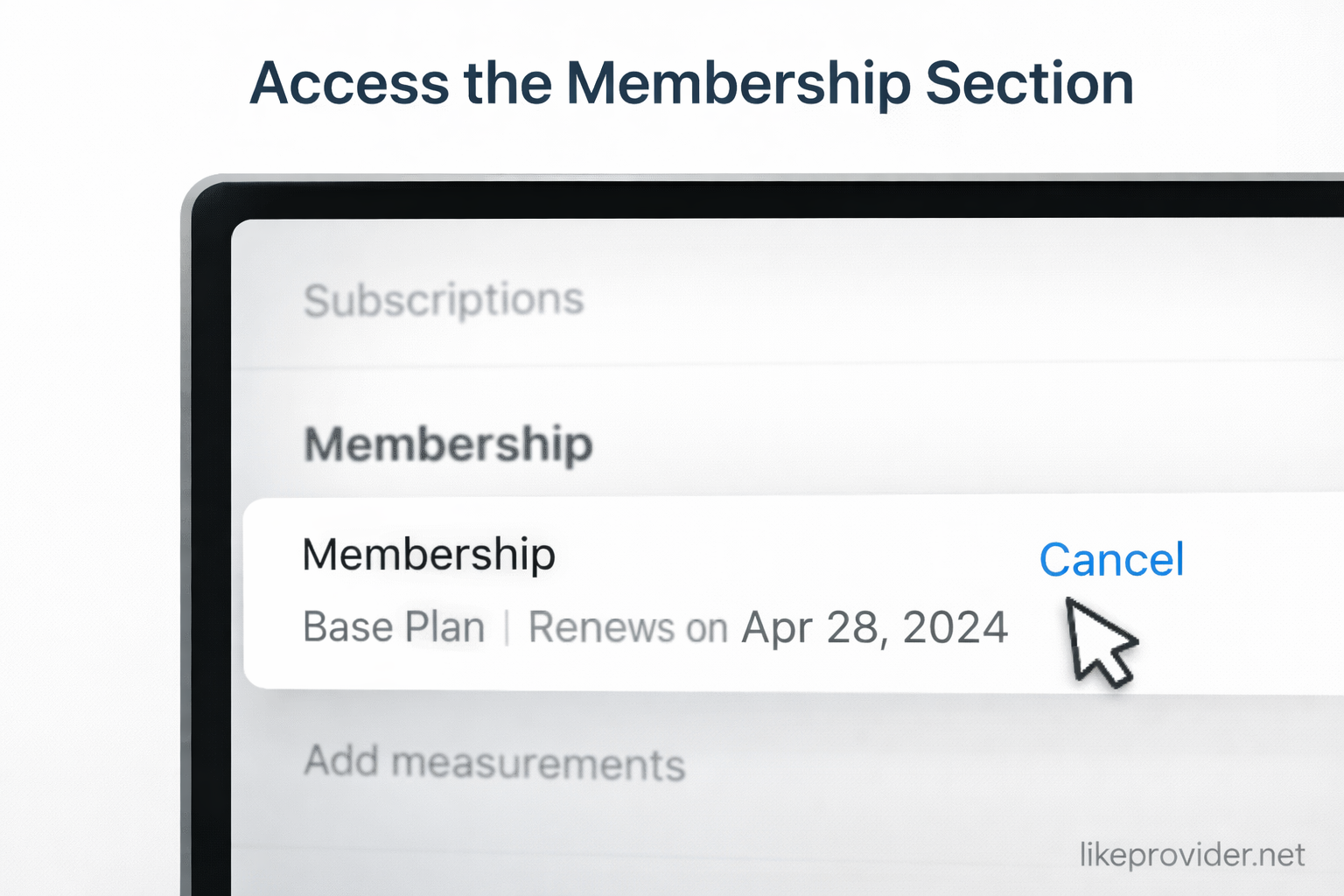
Within the settings menu, navigate to the “Membership” section. Here, you’ll see your active plan, billing cycle, and renewal details. The cancellation option is displayed alongside your base plan.
Many users searching for how to cancel youtube tv subscription miss this section, but it is clearly accessible once you reach the membership area.
Reviewing Billing Information Before Cancelling
Before finalizing cancellation, review your billing details carefully. Check your next billing date and confirm whether any add-ons are active. This helps ensure there are no unexpected charges and clarifies when access will end.
Starting the Cancellation Process
Select the cancellation option and follow the on-screen prompts. You may be asked to choose a reason for cancelling, but this step does not affect your ability to proceed. Complete the flow until you see confirmation that your request has been submitted.
Once completed, your youtube tv subscription status should update immediately.
Will You Lose Access After Cancelling YouTube TV?
In most cases, access continues until the end of your current billing cycle. Cancelling does not immediately cut off service. You can continue watching content until the paid period expires, which is clearly shown in your account.
How to Cancel YouTube TV on Mobile Devices
If you’re using a mobile device, the steps are nearly identical. Open the YouTube TV app, tap your profile icon, go to settings, and select membership. From there, you can complete the cancellation process in just a few taps.
How to Cancel YouTube TV on Desktop
On desktop, visit the YouTube TV website and sign in. Click your profile icon, open settings, and navigate to membership. The cancellation option is available directly within this section.
Common Problems When Cancelling YouTube TV
Some users encounter small issues during cancellation. These usually include not seeing the cancel button, using a third-party billing provider, or accessing the wrong Google account. Ensuring you are logged into the correct account resolves most problems.
Refund Policy After Cancelling YouTube TV
YouTube TV generally does not offer refunds for unused time. Instead, users retain access until the end of the billing cycle. If you’re cancelling during a free trial, charges typically do not apply as long as cancellation is completed before the trial ends.
Confirming Your Cancellation
After cancelling, a confirmation message appears in your account, and a confirmation email is usually sent. Keeping this email ensures you have proof of cancellation and prevents any future confusion.
If you ever revisit how to cancel YouTube TV subscription, checking your membership status confirms that the process was successful.
If you prefer saving multiple videos at once, you can also use our YouTube playlist downloader to download entire playlists quickly and easily.

Who Should Consider Cancelling YouTube TV?
Cancelling may be a good choice if you rarely watch live TV, have finished a sports season, or switched to on-demand platforms. Evaluating how often you use the service helps determine whether continuing the subscription makes sense.
After Cancellation: Alternative Streaming Options
Once your subscription ends, you may want to explore other viewing options depending on your habits.
- On-demand streaming platforms offering movies and series
- Free streaming services with ad-supported content
- Live TV alternatives with smaller channel packages
Choosing the right alternative depends on whether you prioritize live channels, flexibility, or lower monthly costs.
If you’re also looking for a simple way to save content offline, you may want to explore our youtube video download guide for step-by-step instructions.
Frequently Asked Questions About Cancelling YouTube TV
Can you resubscribe later? Yes, you can reactivate your subscription at any time using the same account.
Is cancellation instant? No, access usually continues until the billing period ends.
Are recordings saved? Recordings may not be available after the subscription fully ends.
Can you cancel during a free trial? Yes, cancelling before the trial ends prevents charges.
For the most accurate and up-to-date instructions, you can review YouTube TV Help Center which explains the cancellation process directly from the official source.