Updated for 2026 · Reviewed by LikeProvider Social Media Team
Quick Answer: Spotify Wrapped is an in-app experience—there is no official file download. To save your Wrapped, use the Share button to save your card or story as images to your device, or take screenshots. To share your Wrapped, tap Share in the app and choose Instagram, Twitter/X, or save to camera roll. For more Spotify tools, see our Spotify playlist downloader and Instagram caption generator (for sharing captions).
Spotify Wrapped Download – How to Save & Share Your Wrapped (2026)
Download, save, and share your Spotify Wrapped highlights, stories, and stats
Learn how to download, save, and share your Spotify Wrapped highlights, stories, and stats. This 2026 step-by-step guide covers spotify wrapped download, save spotify wrapped, and share spotify wrapped. Pair with our Spotify playlist downloader, Instagram caption generator, and Instagram Reels caption generator.
Save your Spotify Wrapped (3 steps)
There’s no official download file—save your Wrapped as images on your device using the steps below.
How do I save my Spotify Wrapped?
Use the Share button in Wrapped to save your card or story as images to your device. There is no official download file.
Open Spotify Wrapped in the app, then tap Share. Choose “Save image” or “Save to photos” (wording may vary by device) to keep your Spotify Wrapped card or story slides on your phone. You can also take screenshots of each slide. Your Spotify Wrapped highlights and stats are only available in the app; saving as images is the way to keep a copy. For sharing those images with captions, see our Instagram caption generator and WhatsApp status caption.
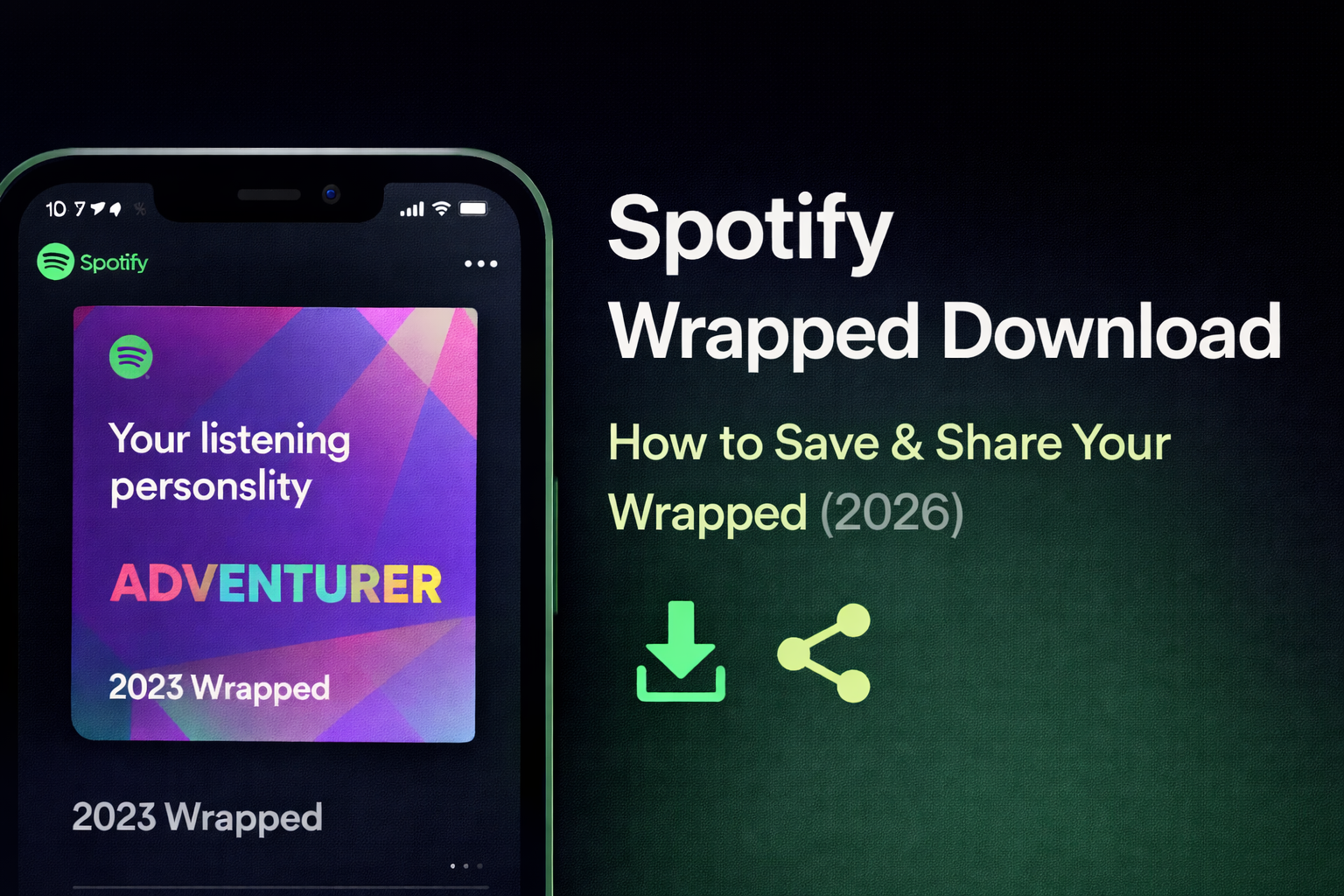
Can You Download Spotify Wrapped?
There is no official Spotify Wrapped download file. Spotify Wrapped is an in-app experience: you view your Spotify Wrapped highlights, stories, and stats inside the Spotify app. To keep a copy, you save your Wrapped by using the Share option to save images to your device or by taking screenshots. So “spotify wrapped download” in practice means saving your Wrapped cards or story as images—not downloading an MP3 or PDF. For downloading Spotify playlists, see our Spotify playlist downloader and Linktree alternative (for sharing links).
When Does Spotify Wrapped Come Out?
Spotify Wrapped is usually released in late November or early December each year. It summarizes your listening from January 1 to October 31 of that year. When it’s available, you’ll see it on the Spotify app Home screen or when you search for “Wrapped.” If you don’t see it, make sure the app is updated and that Wrapped has been released for your region. For more year-end content ideas, see our Instagram caption generator and Instagram Reels caption generator.
Quick Reference: Spotify Wrapped Save & Share (2026)
Use this table for spotify wrapped download and save spotify wrapped at a glance:
| Topic | Details |
|---|---|
| Official download file? | No – in-app only |
| How to save | Share → save image, or screenshot |
| How to share | Share button → Instagram, Twitter, or save to photos |
| When does Wrapped come out? | Late Nov / early Dec |
| What period does it cover? | Jan 1 – Oct 31 of that year |
This is the complete spotify wrapped save and share spotify wrapped quick reference for 2026. For more tools, see our Spotify playlist downloader, Instagram caption generator, and Linktree alternative.
FAQ: Spotify Wrapped Download & Share
How do I save my Spotify Wrapped?
Use the Share button in Spotify Wrapped to save your card or story to your device, or take screenshots of each slide. Spotify Wrapped is in-app; there is no official file download. Saving as images is the way to keep a copy.
Can you download Spotify Wrapped?
No official download. There is no official download file. You can save your Wrapped by using the Share option to save images to your phone or by taking screenshots. The Wrapped experience stays in the Spotify app.
How do I share my Spotify Wrapped?
In the Wrapped experience, tap Share. You can share to Instagram Stories, Twitter/X, or save to your camera roll. You can also post the saved images later from your gallery.
When does Spotify Wrapped come out?
Late November or early December each year. Spotify Wrapped is usually released then. It summarizes your listening from January 1 to October 31 of that year.
Where is my Spotify Wrapped?
Open the Spotify app and go to Home, or search for Wrapped. When Wrapped is available, it is prominently featured. If you don't see it, make sure the app is updated and that Wrapped has been released for your region.