Likeprovider Blog - SMM Panel News, Updates & Guides | Likeprovider.net

Likeprovider Blog

Latest news, updates, and tips about social media marketing

How to Add GIFs on Instagram Comments (Step-by-Step Guide)

How to Add GIFs on Instagram Comments (Step-by-Step Guide)

Adding visual expression to conversations becomes easy once you understand how to add GIFs on Instagram comments. This feature allows users to respond with emotions, humor, or reactions using animated visuals instead of plain text.< GIF comments help interactions feel more natural and engaging, especially in fast-moving conversations. When used correctly, they enhance communication without overwhelming the discussion.

Who Can Use GIFs in Instagram Comments

Not all users gain access to how to add GIFs on Instagram comments at the same time. Instagram frequently releases features gradually, meaning availability may depend on your region, account type, or app version.

Both personal and creator accounts usually receive this feature first, while some business accounts may experience delays.

Devices and Platforms That Support GIF Comments

Understanding device compatibility helps avoid confusion when learning how to add GIFs on Instagram comments. GIF comments are fully supported on the Instagram mobile app for iPhone and Android.

Desktop and mobile browser versions may not display the GIF option consistently, so using the official app offers the best experience.

How to Add GIFs on Instagram Comments Step by Step

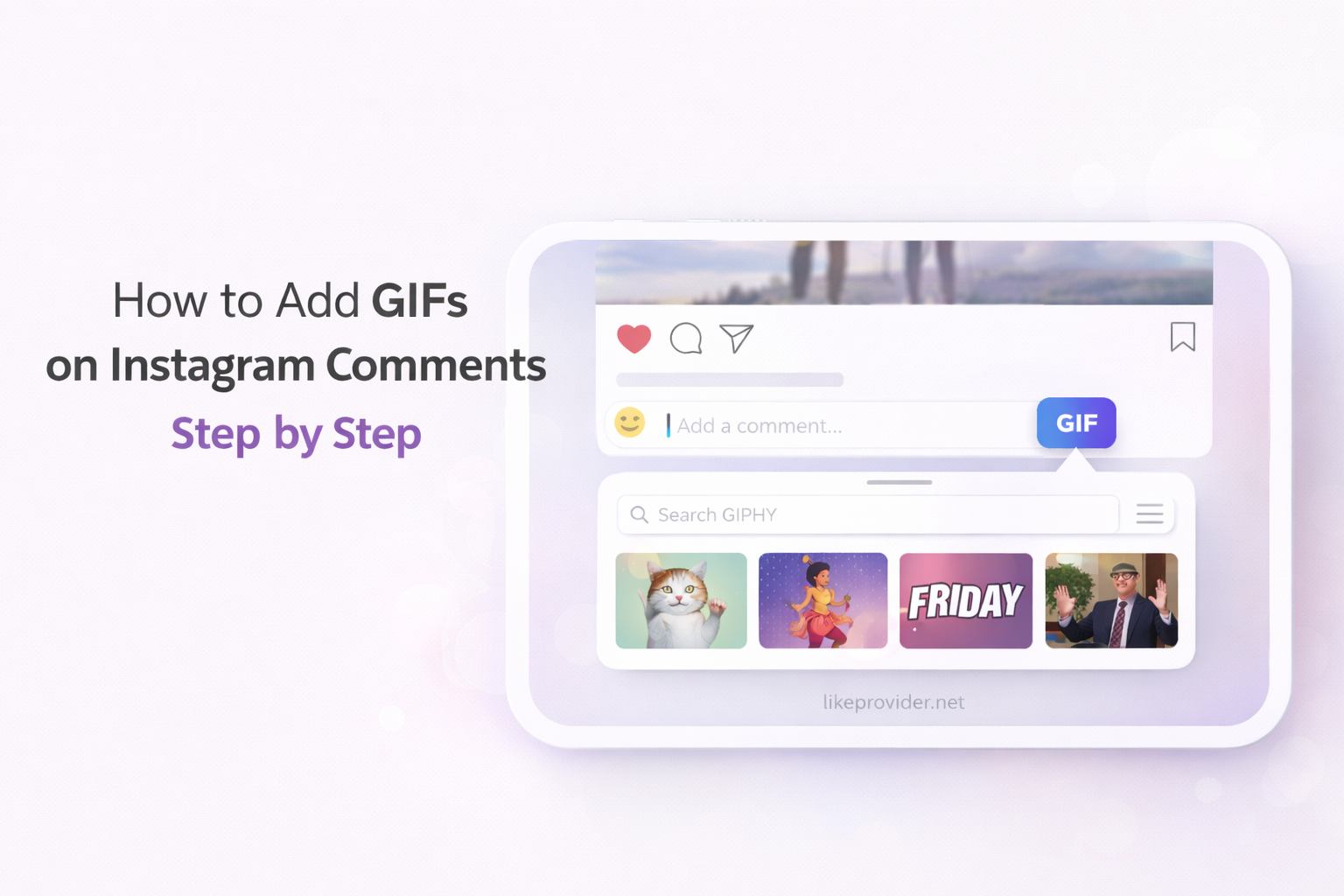
If you are new to how to add GIFs on Instagram comments, following a clear process makes it effortless. The feature is built directly into the comment interface.

  • Open the Instagram app and go to the post you want to comment on.
  • Tap the comment field below the post.
  • Select the GIF icon located near the text input area.
  • Search for a GIF or browse trending animations.
  • Tap the GIF you want to post, and it will be shared instantly.

Once you understand how to insert GIFs in Instagram comments, responding becomes faster and more expressive.

Creative Ways to Enhance Comments with GIFs

Knowing how to find GIFs for Instagram comments can elevate how your responses are perceived. Reaction-based GIFs often work best, as they reflect emotion without needing explanation.

Selecting animations that match the tone of the post keeps conversations clear and engaging rather than distracting.

Why the GIF Option May Not Appear in Comments

Even if you understand how to add GIFs on Instagram comments, the option may not always appear. This often happens due to outdated app versions, feature testing, or temporary restrictions.

Updating the app, logging out and back in, or waiting for future updates usually resolves this issue.

Troubleshooting Common Issues with GIFs in Instagram Comments

Occasional problems can interrupt how to add GIFs on Instagram comments. Slow loading or missing GIFs are commonly related to weak internet connections or temporary app glitches.

Restarting the app, clearing cache, or switching networks can quickly restore normal functionality.

If you want to scale engagement faster, using a reliable SMM panel can help automate likes, views, and followers efficiently.

Are GIF Comments Visible to Everyone

When you use how to add GIFs on Instagram comments, the animation is visible to anyone who can view the post. However, users on older devices or slower connections may experience delayed loading.

GIF comments behave the same as text comments and do not affect post reach or visibility.

Do GIF Comments Increase Engagement on Instagram

Using how to add GIFs on Instagram comments strategically can improve engagement. GIF comments often receive more attention, likes, and replies compared to standard text responses.

Because GIFs communicate emotion quickly, they encourage users to interact and continue conversations.

Common Mistakes to Avoid When Using GIFs in Comments

While learning how to add GIFs on Instagram comments, overuse is a common mistake. Posting too many GIFs or choosing unrelated animations can reduce clarity.

Moderation and relevance ensure GIFs enhance conversations instead of distracting from them.

How Instagram Selects GIFs for Comments

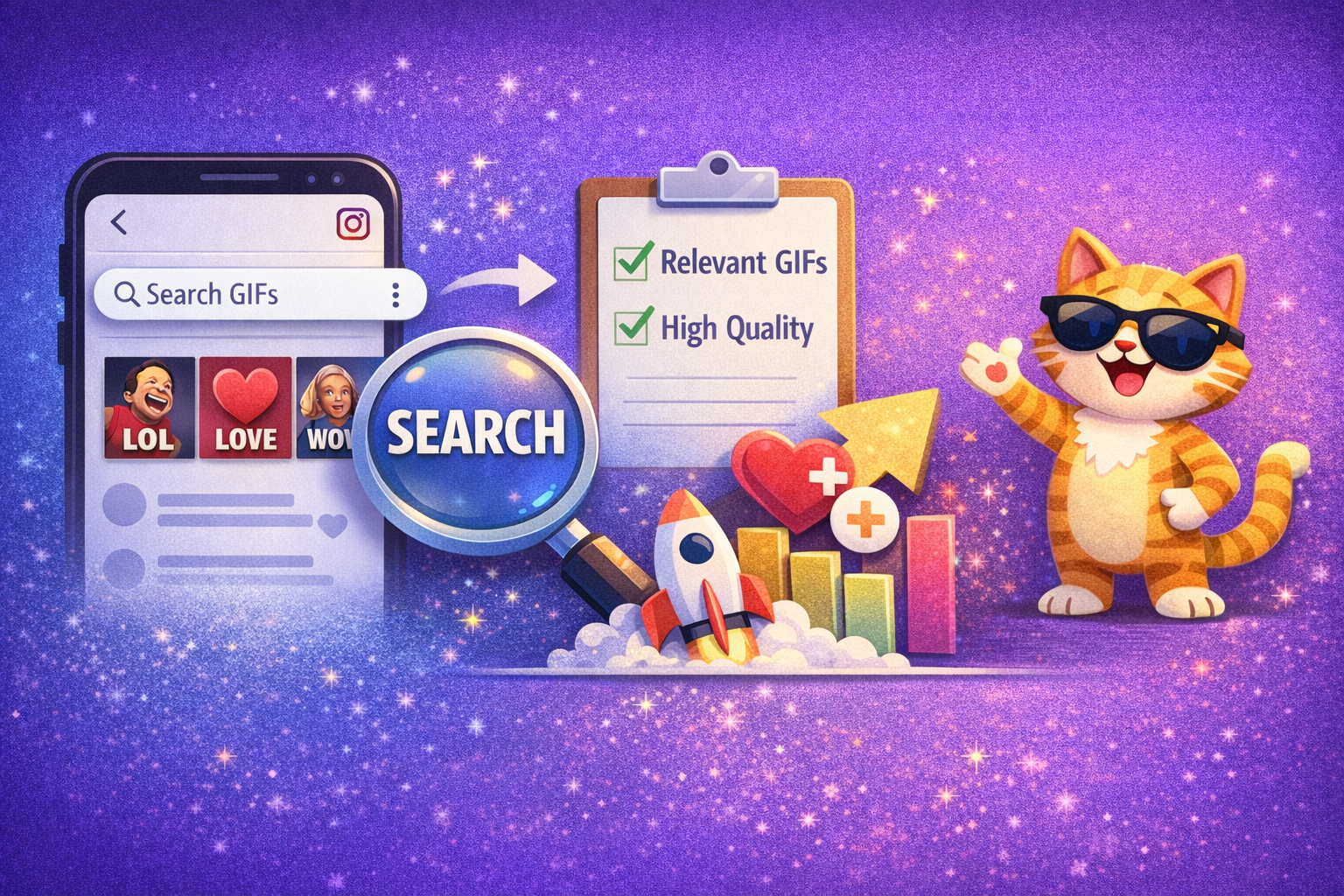
Instagram sources animations from third-party GIF libraries. Understanding this helps refine how to add GIFs on Instagram comments more effectively.

Using clear search terms often returns higher-quality and more relevant GIF options.

For quick access to boost your visibility, check out our guide on free Instagram views at free Instagram views.

Best Practices for Using GIFs to Engage Followers

Effective use of GIFs strengthens community interaction. Choose animations that align with your audience’s expectations and your brand tone.

Thoughtfully placed GIFs feel authentic and invite meaningful responses.

Conclusion

Mastering how to add GIFs on Instagram comments adds personality, emotion, and creativity to your interactions. GIFs allow users to communicate beyond words while keeping conversations lively.

By following the steps and best practices above, you can confidently use GIFs to increase engagement and enhance your presence on Instagram.

For the most accurate and up-to-date information, you can review the official guidelines directly in the Instagram Help Center.
詳細
How to See Rejected Instagram Follow Requests (2026 Guide)

How to See Rejected Instagram Follow Requests (2026 Guide)

Many Instagram users wonder how to see rejected Instagram follow requests after sending a follow request to a private account. Unfortunately, Instagram does not make this process clear, which often leads to confusion.

In this detailed 2026 guide, you’ll learn how to see rejected Instagram follow requests, what Instagram officially allows, and how to tell if your follow request was declined — without using unsafe third-party apps.

Can You See Rejected Instagram Follow Requests?

The short answer is no.

Instagram does not provide a direct way to see rejected Instagram follow requests. Once a follow request is declined, it disappears completely. There is no notification, no warning, and no visible history showing that your request was rejected.

Instagram only shows pending follow requests, not rejected ones. This design is intentional and focused on user privacy.

Why Instagram Doesn’t Show Rejected Follow Requests

Instagram prioritizes privacy for private accounts. If users could see rejected follow requests, it could lead to harassment, pressure, or unwanted interactions.

That’s why:

  • You cannot see a list of rejected Instagram follow requests

  • You are not notified when someone rejects your request

  • Instagram removes the request silently

Even in 2026, this policy remains unchanged.

How to See If Your Instagram Follow Request Was Rejected

While you can’t directly see rejected Instagram follow requests, there are clear signs that help you understand what happened.

1. The “Requested” Button Changes Back to “Follow”

This is the most reliable indicator.

If:

  • You sent a follow request

  • The profile is private

  • The button previously said Requested

  • And now it says Follow

Then your Instagram follow request was most likely rejected.


2. You Still Can’t See Their Posts or Stories

If weeks pass and:

  • You still can’t view their content

  • Their profile remains private

  • The follow button never changes to “Following”

This usually means your request was declined or ignored.


3. Your Request Is Missing from Pending Requests

Instagram allows you to see pending follow requests, but once a request is rejected, it disappears.

To check pending requests:

  1. Go to Settings

  2. Tap Security

  3. Open Access Data

  4. Select Connections

  5. Tap Follow Requests

If the username is not listed, it means the request is no longer pending — likely rejected.

Where to See Pending (Not Rejected) Instagram Follow Requests

It’s important to understand the difference between pending and rejected requests.

Instagram only lets you see pending follow requests.

How to Check Pending Follow Requests:

  • Settings → Security → Access Data → Connections → Follow Requests

This section does not show rejected Instagram follow requests. It only shows requests that are still waiting for approval.

Does Instagram Notify You When a Follow Request Is Rejected?

No.

Instagram does not send any notification when:

  • Your follow request is rejected

  • Your request is removed

  • Someone ignores your request

The app stays completely silent.


Can You Withdraw a Follow Request Before It’s Rejected?

Yes. If your request is still pending, you can cancel it manually.

How to Cancel a Follow Request:

  1. Open the user’s profile

  2. Tap Requested

  3. Confirm cancellation

This immediately removes your follow request.

Can You Resend a Follow Request After Rejection?

Yes, but be careful.

If you resend follow requests repeatedly:

  • Instagram may flag your account

  • You could trigger spam detection

  • Your account reach may be limited

Best practice:
Wait at least 1–2 weeks before sending another follow request.

Can Third-Party Apps Show Rejected Instagram Follow Requests?

No legitimate app can.

Any app claiming to:

  • Show rejected Instagram follow requests

  • Track who declined your follow

  • Reveal hidden follow data

is unsafe.

These apps often:

  • Violate Instagram’s terms

  • Request account passwords

  • Risk account suspension or hacking

Avoid them completely.


Common Myths About Rejected Instagram Follow Requests

“There’s a hidden Instagram feature to see rejected requests”
→ False

“Business accounts can see rejected requests”
→ False

“Older versions of Instagram show rejected requests”
→ False

Instagram has never allowed users to see rejected follow requests.


Why Follow Requests Sometimes Disappear Without Rejection

Sometimes, a follow request disappears for other reasons:

  • The user deleted their account

  • The account was suspended

  • The user switched to public and back to private

  • Instagram removed inactive requests

Not every missing request means rejection, but most do.

Before sending a follow request, increasing visibility on your posts with free Instagram views can make your profile look more active and appealing.

Best Practices When Sending Follow Requests on Instagram

To reduce rejection chances:

  • Complete your bio clearly

  • Use a real profile photo

  • Avoid sending mass follow requests

  • Engage with public posts first

  • Avoid spam-like usernames

A trustworthy profile increases acceptance rates.

If you’re trying to increase engagement before sending follow requests, using free comments on Instagram can help make your profile look more active and trustworthy.


Frequently Asked Questions (FAQ)

Can you see rejected Instagram follow requests?

No. Instagram does not allow users to see rejected follow requests.

How do I know if my follow request was rejected?

If the “Requested” button changes back to “Follow,” your request was likely rejected.

Where can I see pending follow requests?

Settings → Security → Access Data → Connections → Follow Requests.

Does Instagram notify you about rejected requests?

No. Instagram never sends notifications for rejected follow requests.


Final Thoughts

If you’re searching for how to see rejected Instagram follow requests, the reality is simple: Instagram doesn’t show them directly. However, by understanding how follow requests behave and recognizing key signs, you can confidently tell when a request has been rejected.

Always avoid third-party apps, follow Instagram’s rules, and focus on maintaining a genuine profile for better results.

For the most accurate and up-to-date information, you can review Instagram’s official Help Center guidance on follow requests to understand how Instagram handles pending and rejected requests.

詳細
How to Zoom Out on TikTok (Easy Step-by-Step Guide 2026)

How to Zoom Out on TikTok (Easy Step-by-Step Guide 2026)

Knowing how to zoom out on TikTok can instantly improve the way your videos look and feel. Sometimes TikTok videos appear too close, cutting off important details or making the frame feel cramped. Learning how to control zoom gives you more freedom while recording and watching content, helping your videos look cleaner and more professional.

What Does Zooming Out on TikTok Actually Do?

Zooming out on TikTok allows you to capture a wider view of your surroundings or subject. When you understand how to zoom out on TikTok videos, you can show more context, improve composition, and avoid awkward close-ups. This is especially useful for dance videos, tutorials, and lifestyle content where space and movement matter.

Why TikTok Videos Sometimes Appear Too Zoomed In

Many users search for how to zoom out on TikTok because videos often look closer than expected. This usually happens due to aspect ratio mismatches, accidental screen gestures, or full-screen display settings. Understanding why this occurs helps you avoid the issue before recording or while watching content.

How to Zoom Out on TikTok While Recording

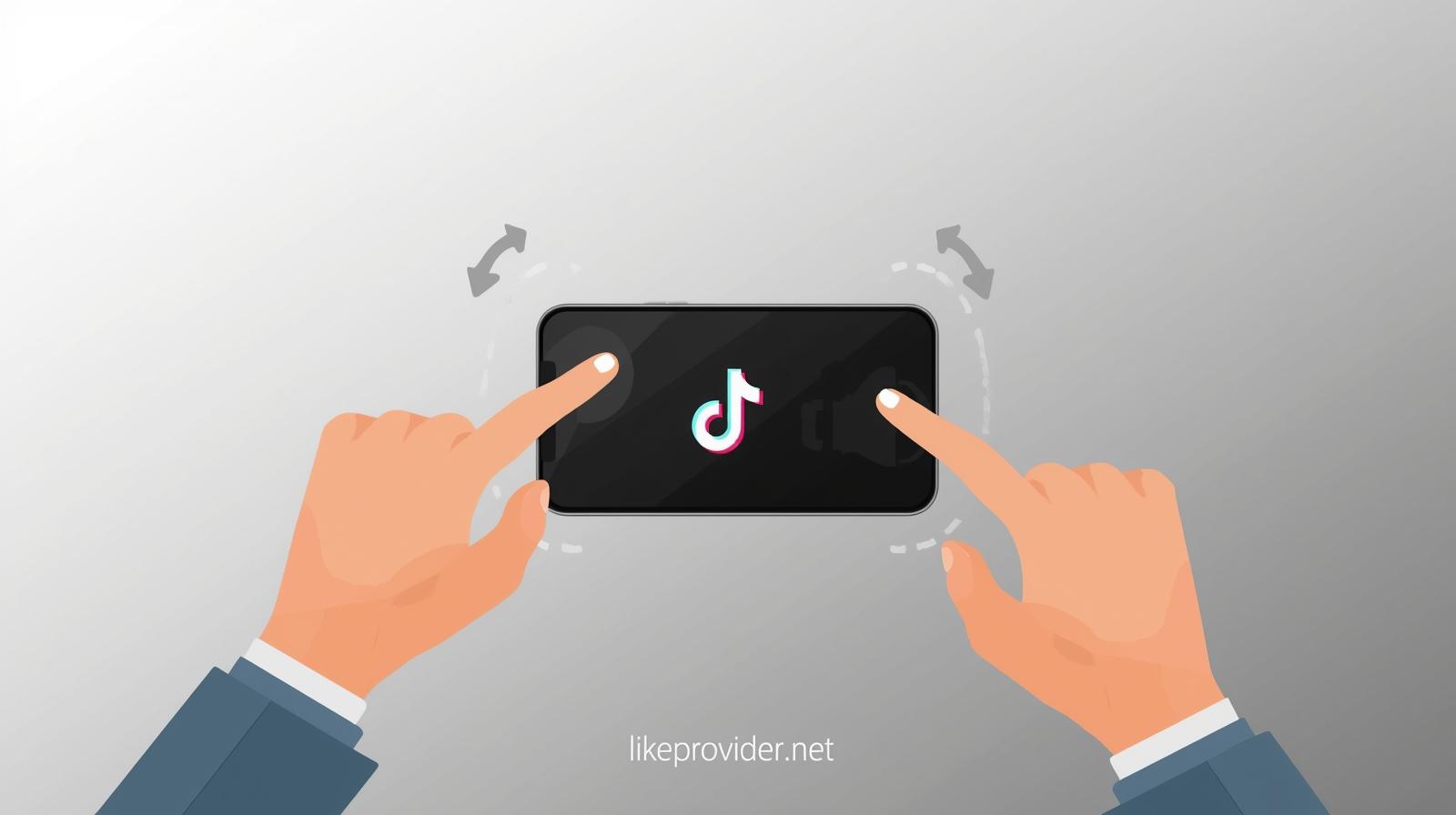
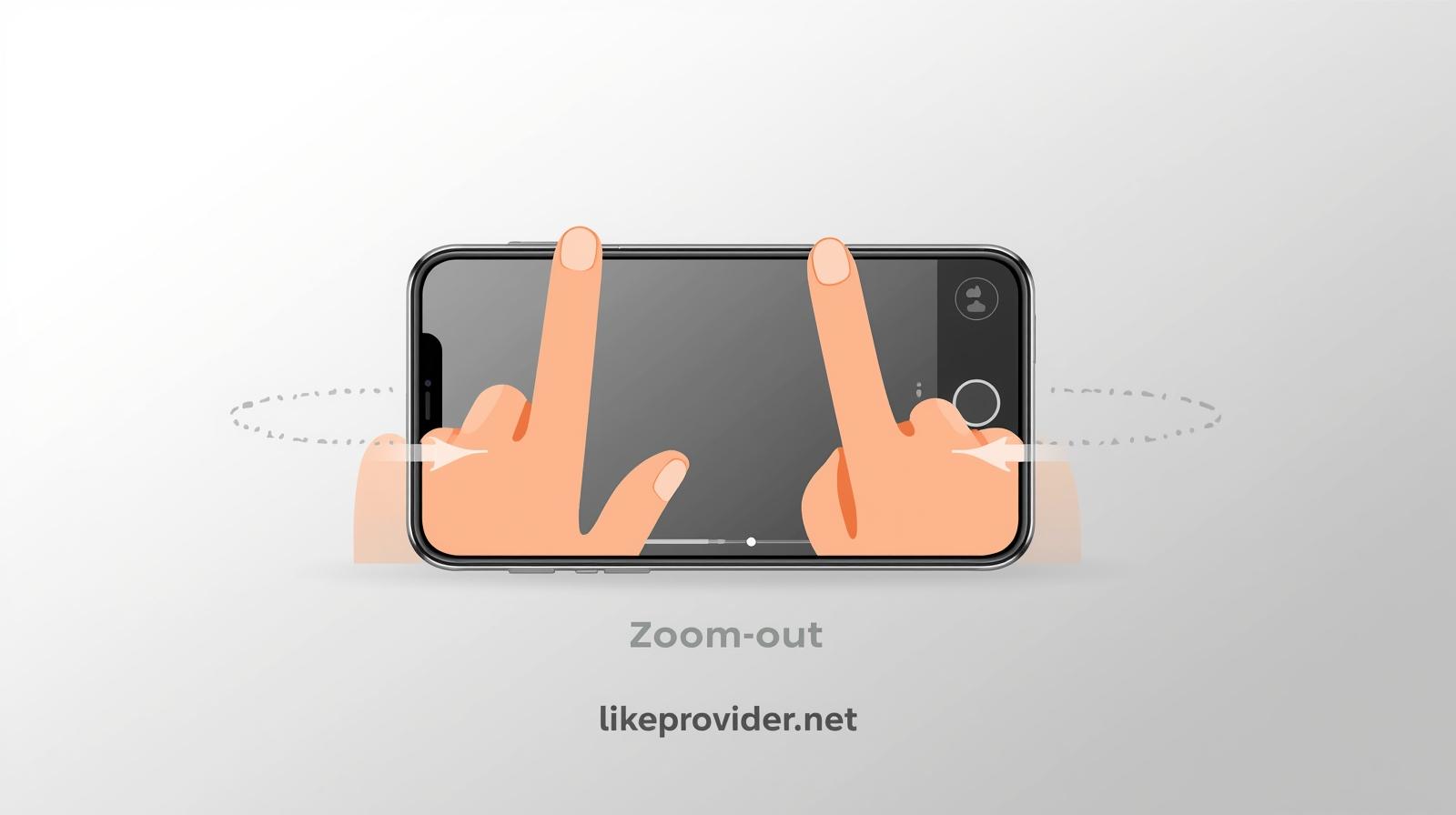
To control the camera properly, it’s important to know how to zoom out on TikTok camera. Open the TikTok app and go to the recording screen. Place two fingers on the screen and pinch inward slowly to zoom out. This gesture works smoothly during recording and gives you full control over how wide the frame appears.

How to Zoom Out on TikTok When Watching Videos

If a video looks too close while watching, learning how to zoom out on TikTok for better view is helpful. Simply pinch the screen inward while the video is playing. TikTok will adjust the display back to its normal size, making the content easier to watch without missing details.


How Zooming Out Works on iPhone and Android Devices

The way how to zoom out on TikTok works can slightly differ between iPhone and Android devices. On most phones, the pinch-in gesture is standard, but screen sensitivity and system gestures may affect responsiveness. Knowing this difference helps you apply the zoom-out action more accurately.

Difference Between Zooming Out While Recording and Watching

Zooming out behaves differently depending on whether you are recording or watching a video. When recording, how to zoom out on TikTok camera gives you creative control over framing. While watching, zooming out mainly resets the display for a better view, especially on full-screen videos.

Using TikTok Effects to Create Zoom-Out Looks

TikTok also offers creative tools for zoom effects. If you’re curious about how to zoom out on TikTok effects, tap the Effects option before recording and browse visual effects that simulate zooming in or out. These effects are useful for transitions, reveals, and storytelling moments.

When Creators Should Use Zoom Out on TikTok

Using zoom out intentionally can improve video performance. Creators often use how to zoom out on TikTok videos for dance content, tutorials, transitions, and room-based shots. A wider frame improves clarity and keeps important elements visible throughout the video.

Does Zooming Out Affect TikTok Video Performance?

Zoom level itself does not directly affect TikTok rankings, but viewer experience does. Videos that are properly framed using how to zoom out on TikTok for better view tend to hold attention longer. Higher watch time and lower swipe-away rates indirectly support better reach.

If you want to boost engagement after fixing your video framing, trying free TikTok likes can help your content gain early visibility and reach more users organically.

Once your video framing looks right, using free TikTok comments can help spark early interaction and encourage more users to engage with your content.

Common Problems When Zooming Out on TikTok

Sometimes users struggle with how to zoom out on TikTok because the app doesn’t respond as expected. This can happen due to app glitches or outdated versions. Restarting the app, updating TikTok, or freeing up storage space usually fixes the issue and restores smooth zoom control.

What to Do If Zoom Out Does Not Work

If zooming out doesn’t respond, the issue is usually temporary. Restarting the app, checking for updates, or cleaning the screen can solve most problems. If the issue continues, re-learning how to zoom out on TikTok with slower gestures often restores normal behavior.

How to Zoom Out on TikTok: Quick How-To Summary

To zoom out on TikTok, open a video or the recording screen and place two fingers on the display. Slowly pinch inward to zoom out until the frame looks balanced. This method works both while recording and watching videos and is the easiest way to control how to zoom out on TikTok.


Tips to Make Zoom-Out Videos Look Better

Zooming out works best when it supports your content. Try to keep your subject centered, avoid sudden movements, and zoom slowly for a natural look. When used intentionally, mastering how to zoom out on TikTok can make your videos feel more polished and easier to watch.

Quick Summary: How to Zoom Out on TikTok

To zoom out on TikTok, place two fingers on the screen and pinch inward while recording or watching a video.
This instantly gives you a wider view and better framing.

Try this gesture now to fix zoomed-in TikTok videos in seconds.

For official guidance on camera gestures and recording controls, you can review TikTok’s Help Center documentation for the most accurate and up-to-date instructions.

詳細
How to Clear YouTube Cache (Fix App Errors & Loading Issues)

How to Clear YouTube Cache (Fix App Errors & Loading Issues)

If you’ve ever experienced slow loading, buffering, or random errors while watching videos, you’re definitely not alone. These issues are often caused by stored temporary data inside the app or browser. Knowing how to clear YouTube cache can quickly fix many of these problems and noticeably improve performance. Whether you’re using a smartphone, desktop computer, or smart TV, clearing the cache is one of the easiest ways to restore smooth playback and faster loading times.

Why Clearing YouTube Cache Matters

Over time, YouTube stores temporary files on your device to help videos load faster. While this usually improves performance, excessive cached data can lead to glitches, outdated thumbnails, and slower response times. Clearing the cache removes these unnecessary files and forces YouTube to reload fresh data. Understanding how to clear YouTube cache helps prevent minor issues from turning into constant playback problems.

How to Clear YouTube Cache on Mobile Devices

Clearing the cache on mobile devices is a quick and effective fix for most YouTube issues. Open your device settings, go to the apps section, and select YouTube. From the storage menu, clear the cached data without deleting app data. This method is ideal for users searching for reliable YouTube cache on mobile solutions and usually restores smooth scrolling and faster video loading instantly.

How to Clear YouTube Cache on PC

On a desktop or laptop, YouTube cache is stored within your web browser. To remove it, access your browser’s privacy or history settings and clear cached images and files. This approach addresses how to clear YouTube cache on PC without affecting saved passwords or bookmarks. Restarting the browser afterward ensures the cache is fully refreshed.

If streaming problems continue even after clearing the cache, using youtube video download options can help you watch videos offline without interruptions.


Fixing YouTube Errors Caused by Cache Issues

Cache-related errors often appear as buffering loops, black screens, or sudden sign-outs. In many cases, clearing the cache resolves these issues immediately. If problems persist, restarting your device or updating the YouTube app can eliminate remaining bugs. Learning how to clear YouTube cache gives users a fast and safe troubleshooting method before attempting more advanced fixes.

If videos load slowly or engagement feels delayed, using free youtube likes can help trigger early interaction and improve visibility.

How to Clear YouTube Cache Step by Step

If you’re looking for a quick and reliable fix, following clear steps makes the process much easier. Below is a simple breakdown showing how to clear YouTube cache on the most commonly used devices.

On Android devices:

Open your phone’s Settings, go to Apps or App Management, find YouTube, tap Storage, and select Clear Cache. Avoid choosing Clear Data, as that option resets the app completely.

On iPhone and iPad:

Open Settings, go to General, then iPhone Storage or iPad Storage. Select YouTube, tap Offload App, and reinstall it from the App Store. This removes cached files without affecting your account.

On PC or Mac (web browser):

Open your browser settings, navigate to Privacy or Browsing Data, select Cached images and files, clear the cache, and restart the browser. This method safely handles how to clear YouTube cache on PC without removing saved passwords.

Does Clearing YouTube Cache Affect Video Quality?

Clearing the cache does not reduce video quality or remove watch history. Instead, it helps YouTube load content more efficiently. Some users may notice slightly slower loading the first time after clearing the cache, but performance typically improves once fresh data is stored again.

When Clearing YouTube Cache Is Not Enough

In certain situations, clearing cache alone may not fully fix YouTube issues. Persistent crashes or loading failures can be caused by outdated app versions, corrupted updates, or limited device storage. While knowing how to clear YouTube cache is essential, combining it with app updates and occasional device restarts often delivers better long-term results.

Difference Between Clearing Cache and Clearing Data on YouTube

Many users confuse clearing cache with clearing app data. Clearing the cache removes temporary files, while clearing data resets the app completely and logs you out. For most performance issues, clearing cache is sufficient and safer, as it preserves account settings and preferences.

Does Clearing YouTube Cache Improve Battery and Storage Usage?

Large amounts of cached data can quietly consume storage and system resources. Removing this data may free up space and slightly reduce background activity. While clearing cache isn’t a battery-saving solution by itself, it contributes to smoother overall device performance, especially on older smartphones.

Signs Your YouTube Cache Is Causing Problems

Common warning signs include videos stuck on loading screens, delayed audio, blurry thumbnails, and frequent app freezes. If these issues appear regularly, clearing the cache is often the quickest way to restore normal functionality without reinstalling the app.

Is Clearing YouTube Cache Safe for Your Account?

Clearing the cache does not affect your subscriptions, playlists, or recommendations. All personal data is stored on YouTube’s servers, making cache clearing a safe maintenance step for everyday users.

Best Practices to Prevent YouTube Cache Issues in the Future

Keeping the YouTube app and your browser up to date helps prevent corrupted cache buildup. Restarting your device periodically and avoiding excessive background apps can also improve stability. Once you understand how to clear YouTube cache, maintaining good performance becomes much easier.


Why Google Recommends Clearing Cache for App Performance

Google often suggests clearing cached data as a first troubleshooting step because cache files can become outdated or corrupted over time. Clearing them forces apps like YouTube to reload fresh resources, resolving playback errors faster than reinstalling the app.

Frequently Asked Questions

What is YouTube cache?
YouTube cache stores temporary files such as thumbnails and video data to help content load faster on your device.

Will clearing the YouTube cache delete my watch history?
No, clearing the cache only removes temporary files and does not affect watch history or subscriptions.

How often should I clear YouTube cache?
Clearing it every few weeks or whenever performance issues appear is usually sufficient.

Can clearing cache fix YouTube not loading?
Yes, many loading and buffering problems are caused by corrupted cache files and are fixed by clearing them.

You can also check how to clear app cache on Android for official guidance on improving app performance and fixing common issues.

詳細
How to Look Up Instagram Posts by Google Search (Step-by-Step Guide)

How to Look Up Instagram Posts by Google Search (Step-by-Step Guide)

In today’s digital world, navigating social media can sometimes feel overwhelming, especially on platforms like Instagram. However, there is a practical way to find specific content without endlessly scrolling. This guide explains how to look up Instagram posts by Google search and why this method is useful for discovering public posts, trends, or previously seen content. By using Google strategically, you can uncover Instagram content that may not easily appear inside the app.

Understanding What Instagram Content Google Can Find

Before learning how to look up Instagram posts by Google search, it’s important to understand what content is actually visible. Google can only index posts from public Instagram accounts. If a profile is private, its posts will not appear in search results.

Public captions, usernames, hashtags, and location tags are all elements that Google may index. This means content visibility depends largely on how a post is published rather than who is searching for it.

How to Look Up Instagram Posts by Google Search

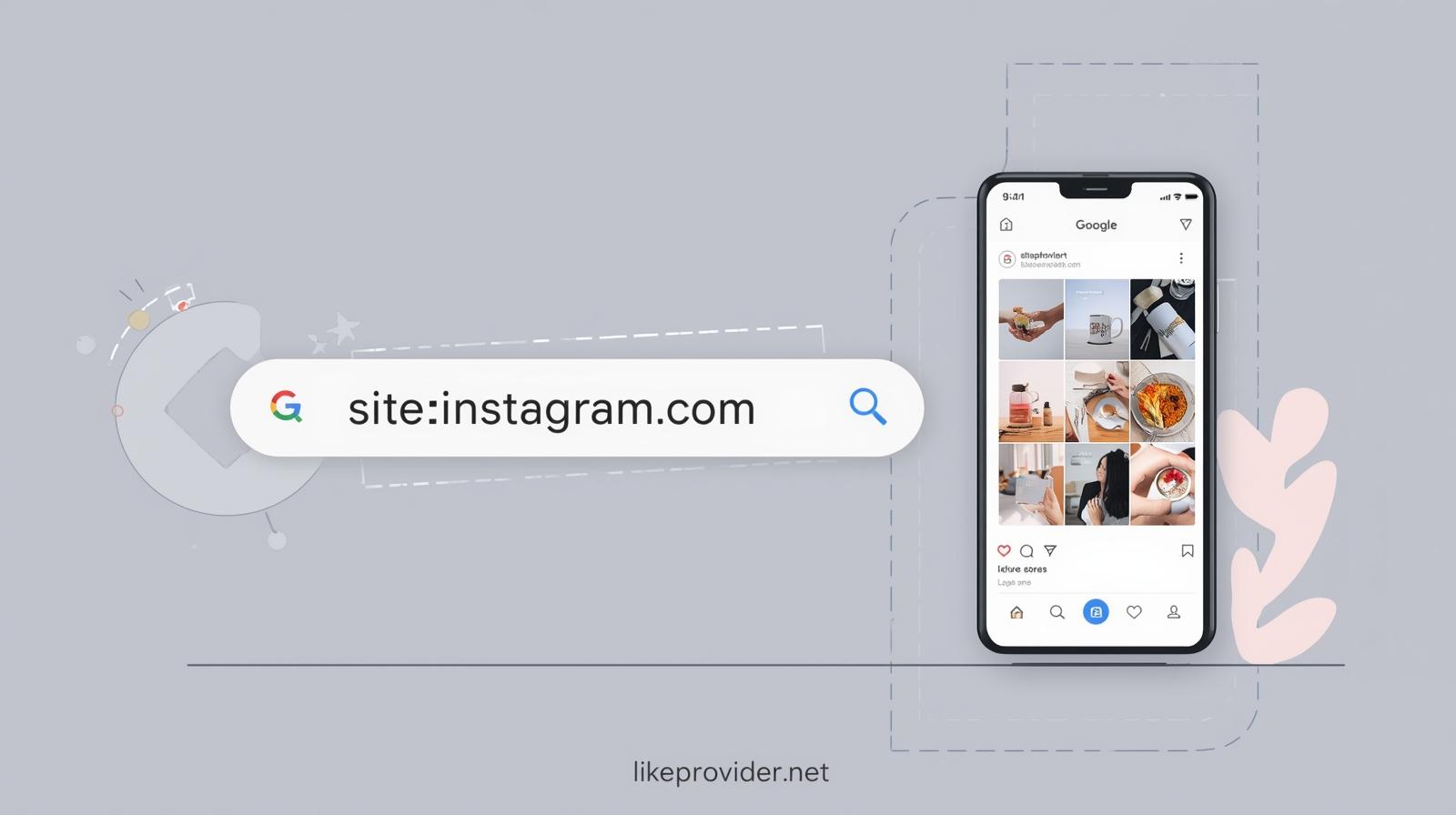
The most effective way to perform this search is by using Google’s site-based search method. Typing site:instagram.com followed by keywords, usernames, or hashtags allows Google to filter results directly from Instagram.

If you are learning how to find Instagram posts using Google search, combining keywords with hashtags or caption phrases often produces more accurate results. This approach helps narrow down content based on topic rather than popularity alone.


Using Search Operators to Improve Accuracy

Search operators can significantly refine results when figuring out how to look up Instagram posts by Google search. Quotation marks can be used to search for exact phrases found in captions, while adding usernames helps locate posts from specific accounts.

Experimenting with different keyword combinations allows you to discover posts that would otherwise be buried under general search results.

Why Am I Not Seeing Some Instagram Posts on Google?

Many users expect all Instagram content to appear in Google results, but this is not always the case. Even if you understand how to look up Instagram posts by Google search, some posts may remain invisible due to privacy restrictions, indexing delays, or platform limitations.

Posts from private accounts cannot be indexed by Google at all. Additionally, newly published posts may take time to appear, and some content may never be indexed if access is restricted.

What Google Can and Cannot Index on Instagram

To fully understand how to look up Instagram posts by Google search, it’s important to know Google’s boundaries. Google can index public profiles, captions, hashtags, and usernames.

However, stories, private posts, deleted content, and material hidden behind login restrictions usually cannot be accessed or displayed in search results.

Real Google Search Examples for Finding Instagram Posts

Knowing how to find Instagram posts using Google search becomes much easier when applying real search patterns. Many users locate posts by combining site:instagram.com with specific topics, hashtags, or caption phrases.

This method is particularly effective for finding older posts, niche content, or posts shared outside your usual Instagram feed.

Instagram App Search vs Google Search

While Instagram’s in-app search focuses on trending content and popular accounts, Google search offers broader discovery. Understanding how to look up Instagram posts by Google search allows users to access archived posts, keyword-based content, and posts beyond their follower network.

Google search is often the better option when precision and depth matter.

Common Mistakes When Searching Instagram Posts on Google

Even users who know how to look up Instagram posts by Google search often make simple mistakes. Using overly broad keywords can lead to irrelevant results, while ignoring hashtags reduces search accuracy.

Another common misunderstanding is expecting private or deleted posts to appear. Google can only show content that is both public and currently available.

How Hashtags Affect Google Search Visibility

Hashtags play a major role in helping Google understand Instagram content. Posts that include clear and relevant hashtags are more likely to appear in search results.

When learning how to look up Instagram posts by Google search, including hashtag-based queries can significantly improve discovery and relevance.

If you regularly analyze Instagram content found through Google search, using free Instagram story views can help increase early interaction on stories shared publicly.


When Google Search Is the Best Way to Find Instagram Posts

Google search is especially useful when researching a topic, tracking brand mentions, or rediscovering a post seen long ago. In these cases, understanding how to look up Instagram posts by Google search saves time and provides more control.

This method works best when you want results unaffected by Instagram’s personalized algorithm.

If you want to boost visibility for public posts you discover through Google, using free Instagram views can help increase initial reach and engagement.

Frequently Asked Questions

Can I find private Instagram posts via Google search?
No, private Instagram posts are only visible to approved followers and cannot be indexed by Google.

Does my Instagram profile need to be public to appear on Google?
Yes, only public Instagram profiles and posts can appear in Google search results.

Can deleted Instagram posts be found on Google?
No, once a post is deleted from Instagram, it is removed and no longer accessible through Google.

Can Instagram posts be optimized for Google search?
Yes, using descriptive captions, relevant hashtags, and public settings improves the likelihood of posts being indexed.

You can learn more about how public Instagram content appears outside the app by checking Instagram’s official Help Center guide on public profiles and content visibility, which explains what information can be accessed publicly.

詳細
What Does Shared With You Mean on TikTok? (Explained Simply)

What Does Shared With You Mean on TikTok? (Explained Simply)

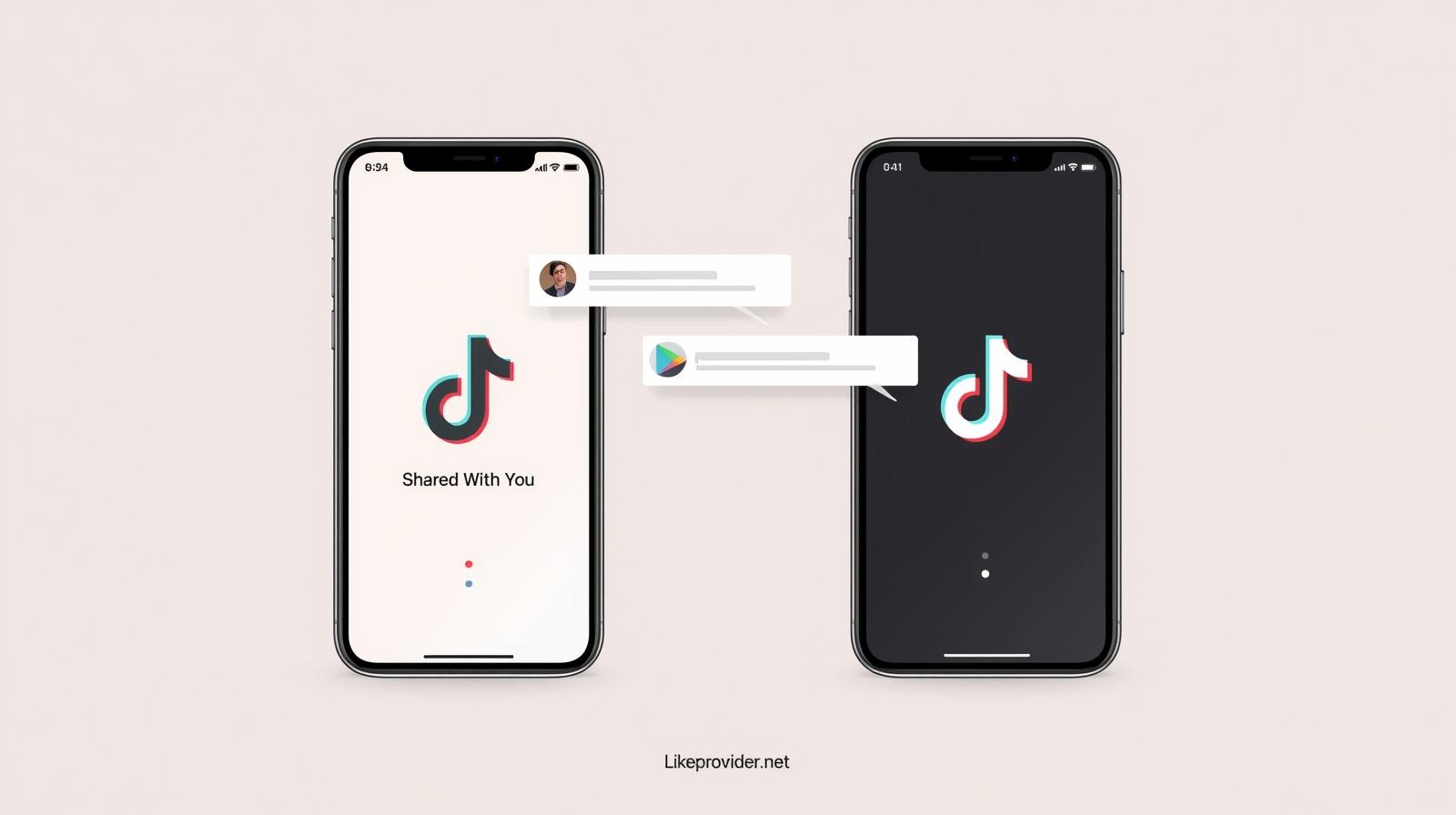
In today’s fast-paced social media landscape, understanding platform-specific features can significantly improve how you interact with content. One feature that often raises questions is shared with you meaning on TikTok. So, what does shared with you mean on TikTok? Simply put, it refers to videos that other users have intentionally sent directly to you through TikTok’s sharing options. This feature creates a more personal, social, and intentional viewing experience.

What Does “Shared With You” Mean on TikTok?

When a video appears with the shared with you on TikTok label, it means another user manually shared that content with you. This is not an automated recommendation and has no direct connection to your For You Page behavior.

Understanding what does shared with you mean on TikTok helps clarify that this section exists purely for direct social interaction, making it one of the most transparent features on the platform.

Where to Find “Shared With You” on TikTok

Videos that fall under the shared with you meaning on TikTok can be found in your inbox. TikTok separates these videos from public feeds so users can easily distinguish between shared content and algorithm-driven suggestions.

Why Am I Seeing “Shared With You” on TikTok?

Many users ask why certain videos suddenly appear as shared with you on TikTok. This happens when someone actively chooses to send you a video through direct messages or sharing tools.

If you are wondering what does shared with you mean on TikTok in real terms, it simply means another person thought the content was relevant, entertaining, or worth your attention.

Increased messaging, commenting, or interaction with others often leads to seeing this label more frequently.

Real Examples of “Shared With You” on TikTok

For example, a friend might send you a trending video they find funny, or a follower may share content related to a topic you previously discussed. In these cases, the shared with you meaning on TikTok reflects real human intent rather than platform automation.

This makes shared content feel more genuine and personalized compared to standard recommendations.


Is “Shared With You” Algorithm-Based or Manual?

The shared with you on TikTok feature is entirely manual. TikTok’s algorithm does not select or rank these videos. Each appearance is the result of a user actively sharing content with you.

This distinction is important for understanding what does shared with you mean on TikTok and avoiding confusion with suggested or trending videos.

Common Misunderstandings About “Shared With You”

Many users assume that shared with you meaning on TikTok involves tracking or hidden monitoring. This is not the case. The feature does not analyze your behavior or secretly recommend videos.

Another common misconception is that shared videos are visible to others. In reality, shared content remains private between the sender and the recipient.

If you want to spark conversation on videos that are shared with you on TikTok, using a free TikTok comments can help encourage interaction and make the content feel more engaging.

How to Manage and Control “Shared With You” on TikTok

You can control who shares content with you by adjusting your messaging and privacy settings. If you want fewer videos appearing as shared with you on TikTok, limiting direct messages is the most effective option.

Understanding what does shared with you mean on TikTok allows you to confidently manage your inbox and maintain a comfortable social experience.

If you want to increase engagement on videos that are shared with you on TikTok, you can also use a free TikTok likes to give shared content a small visibility boost.

Understanding “Shared With You” on TikTok

Ultimately, the shared with you meaning on TikTok represents intentional human interaction rather than algorithmic influence. By knowing exactly what does shared with you mean on TikTok, users can better navigate shared content, engage socially, and enjoy videos that others specifically want them to see.

You can learn more about how TikTok handles direct video sharing and messaging features by visiting TikTok’s official Help Center documentation on sharing and messages, which explains how shared content works within the app.

詳細
How to Post Multiple Photos on Instagram (Step-by-Step Guide)

How to Post Multiple Photos on Instagram (Step-by-Step Guide)

Sharing moments on Instagram becomes far more impactful when you combine multiple images into a single post. If you’re looking for how to post multiple photos on Instagram, this guide explains not only the basic steps but also the best practices that help your posts perform better. Posting several photos together allows you to tell a complete story, keep your feed clean, and increase engagement without overwhelming your audience.

Understanding Instagram’s Carousel Feature

The carousel feature is the foundation of how to post multiple photos on Instagram. It allows you to share up to ten photos or videos in a single feed post. Users can swipe horizontally to view each image, which naturally increases the time spent on your content. This swipe behavior often leads to higher engagement compared to single-image posts.

Many creators also search for how to post multiple photos on Instagram story, but carousel posts are different because they stay permanently on your profile, making them ideal for guides, product showcases, and storytelling.

Why Carousel Posts Perform Better on Instagram

Learning how to post multiple photos on Instagram feed correctly can significantly improve performance. Carousel posts encourage users to interact by swiping, which sends positive engagement signals. More interaction often means better reach, especially when users save or comment on the post.

This format is especially effective for before-and-after visuals, step-by-step explanations, or highlighting details that would be lost in a single image.

If you’re looking to increase visibility alongside carousel posts, you can also use free Instagram views to help your content reach a wider audience organically.


Preparing Images for a Strong Carousel Post

Before uploading, it’s important to plan how your photos will look together. If your goal is mastering how to post multiple photos on Instagram carousel, consistency matters. Similar lighting, color tones, and themes help the post feel intentional and professional.

Users often ask how to post multiple photos on Instagram without cropping. The best solution is to use images with the same aspect ratio or adjust them beforehand so Instagram doesn’t crop key details.

How to Post Multiple Photos on Instagram Step by Step

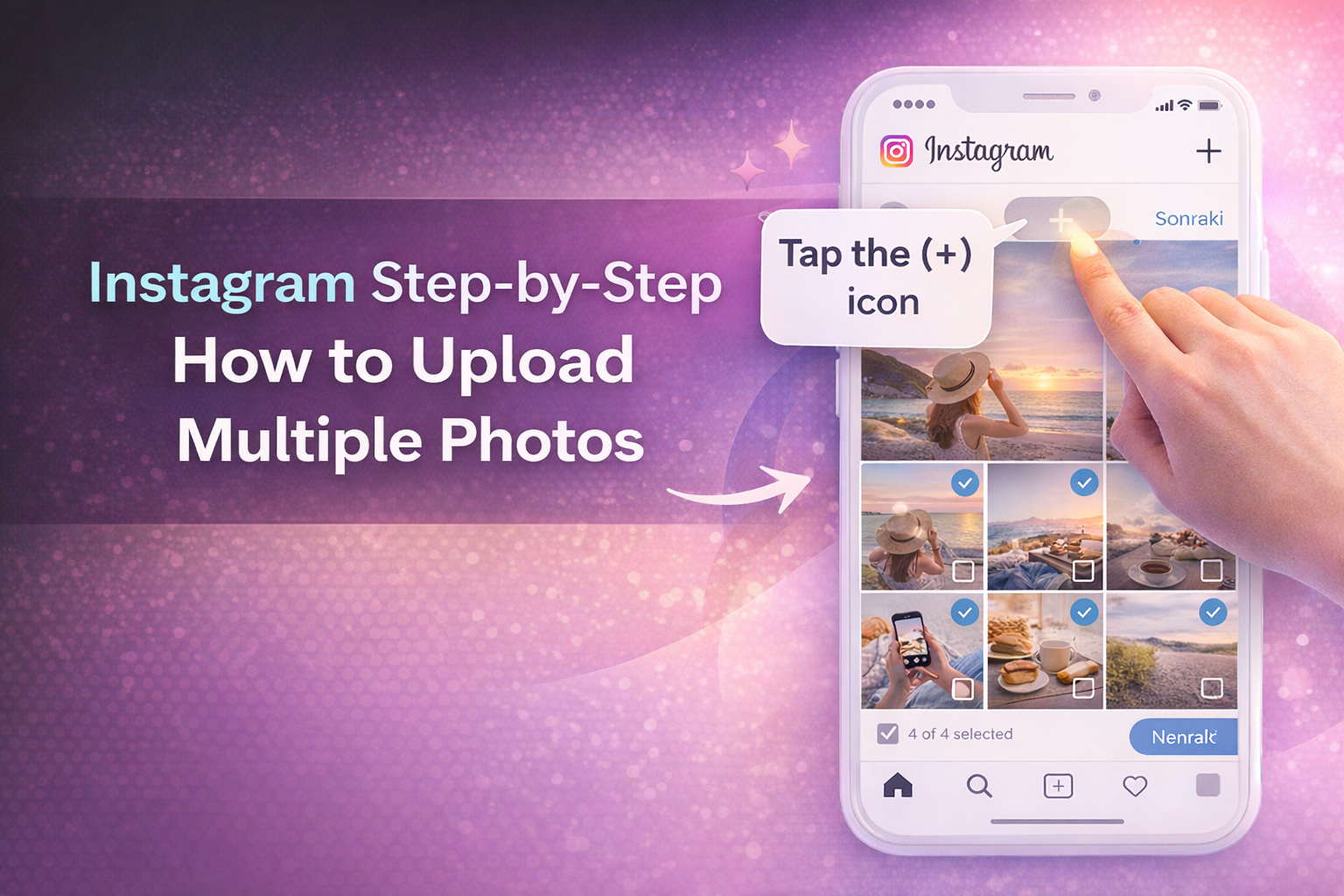
Open the Instagram app and tap the plus (+) icon to create a new post. Choose the option that allows selecting multiple images, then pick up to ten photos or videos. The order you choose determines how they appear, so arrange them carefully.

After selection, you can edit each image individually. Once you’re satisfied, add your caption and share the post. This simple process explains how to post multiple photos on Instagram at once without using any third-party tools.


Posting Multiple Photos on Mobile Devices

Most users post from their phones, so understanding how to post multiple photos on Instagram on mobile is essential. The process is the same on both iPhone and Android devices. The only difference may be minor interface changes, but the multi-select option remains the same.

Keeping your app updated ensures all carousel features work smoothly and prevents selection issues.

Common Problems When Posting Multiple Photos

Sometimes users can’t select multiple images or don’t see the carousel option. This usually happens due to outdated apps, temporary glitches, or selecting unsupported file formats. Restarting the app or updating Instagram often fixes these issues.

Understanding these problems helps you apply how to post multiple photos on Instagram without frustration.

Best Image Order and Sizes for Carousels

The first image is the most important because it determines whether users stop scrolling. Choose your strongest visual first, followed by supporting images. Square (1:1) or vertical (4:5) formats usually perform best because they take up more screen space.

A well-planned order keeps users swiping until the last image, increasing overall engagement.

Captions and Hashtags for Multi-Photo Posts

When applying how to post multiple photos on Instagram, captions should connect all images into a single idea. A clear opening line encourages users to swipe, while a short call to action can increase comments.

Use relevant hashtags naturally. Fewer, targeted hashtags often perform better than excessive tagging.

To encourage interaction on carousel posts, you can also use free Instagram comments to spark engagement and make your content more visible.


Does Posting Multiple Photos Affect the Algorithm?

Carousel posts often receive multiple chances to appear in the feed. If a user doesn’t interact the first time, Instagram may show the same post again starting from a different image. This gives your content more visibility and increases the chance of engagement.

Because of this behavior, mastering how to post multiple photos on Instagram can indirectly improve reach and consistency.

Tracking Performance and Improving Future Posts

After publishing, review likes, comments, saves, and swipe behavior using Instagram insights. These metrics help you understand what works and how to improve future carousels.

By consistently refining your approach, you can turn multi-photo posts into one of the strongest elements of your Instagram strategy.

You can find the most accurate and up-to-date instructions directly in Instagram’s official Help Center, which explains how carousel posts work and how to upload multiple photos step by step.

詳細
How to Block YouTube Channels (Step-by-Step Guide)

How to Block YouTube Channels (Step-by-Step Guide)

In today’s digital world, managing your online experience is more important than ever, especially on platforms like YouTube. Over time, you may encounter content that no longer fits your interests or values. Knowing how to block YouTube channels gives you control over what appears in your feed. Whether you want to create a safer environment for children or simply avoid unwanted creators, this guide explains everything in a clear and practical way.

Why Blocking YouTube Channels Can Improve Your Experience

YouTube’s recommendation system is designed to keep users engaged, but it does not always reflect personal preferences. Learning how to block YouTube channels helps reduce distractions and makes your feed more relevant. This is especially helpful when filtering content for kids or avoiding repetitive recommendations.

While the process may differ slightly depending on the device, such as how to block YouTube channels on mobile versus desktop, the goal remains the same: better content control.

Step-by-Step: How to Block YouTube Channels

If you want direct and effective results, following the correct steps is essential. Many users fail because they skip small but important details. Below is the most reliable way to apply how to block YouTube channels.

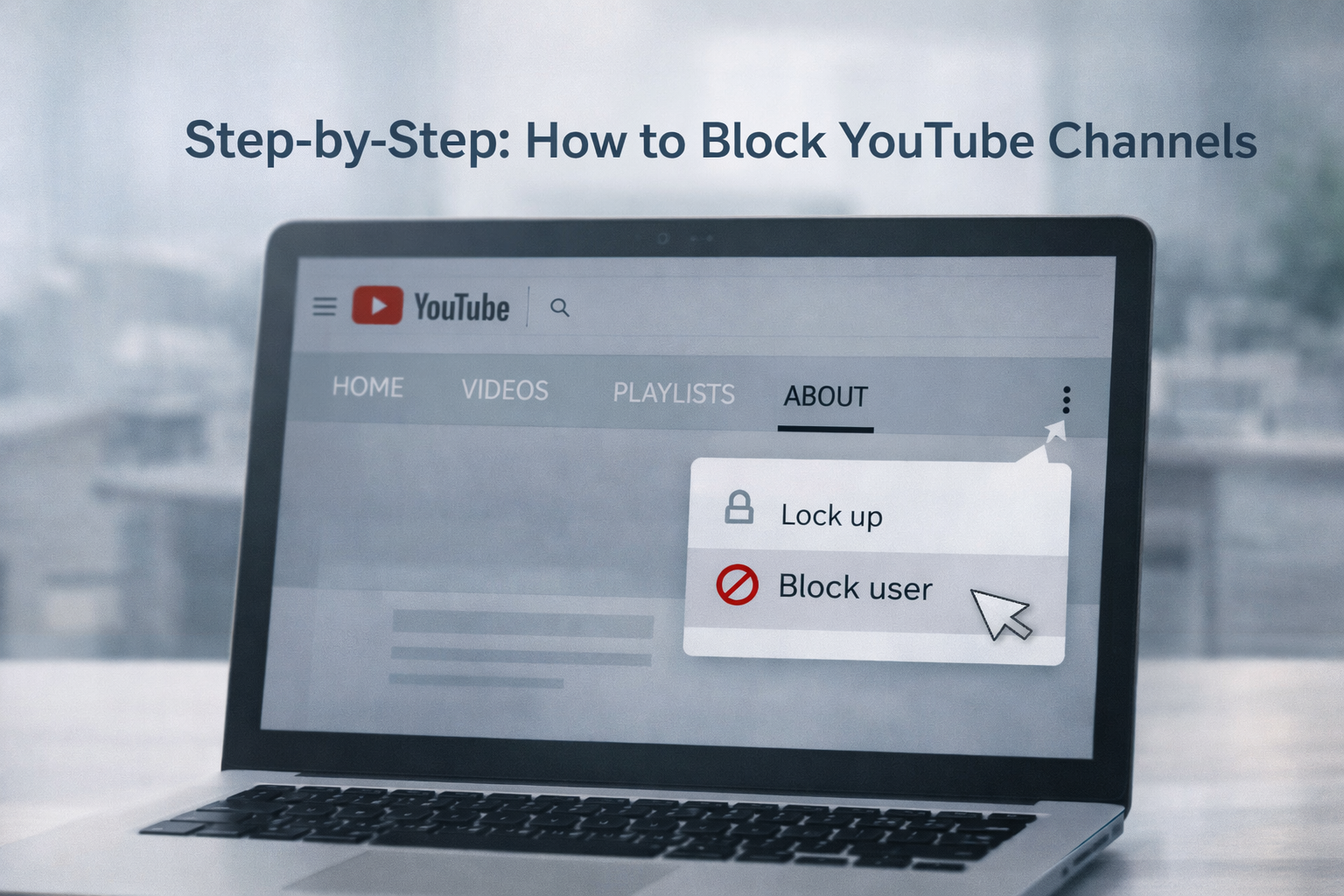
First, open the channel page you no longer want to see in your recommendations. Make sure you are signed into your YouTube account.

Next, locate the options menu on the channel page and choose the block option. Confirm your choice to stop the channel’s content from appearing in your feed.

Once blocked, the channel will no longer be promoted in your recommendations, helping you maintain a cleaner viewing experience.


How to Block YouTube Channels on Mobile and Desktop

Understanding how to block YouTube channels on mobile is important for users who primarily watch content through the app. On mobile, open the channel, tap the menu icon, and select the block option.

For desktop users, how to block YouTube channels on desktop follows a similar process through the channel’s main page. While the layout differs slightly, the blocking function works the same way across devices.

How to Block YouTube Channels for Kids

Parents often search for ways to manage content for kids. Blocking channels is one option, but it works best when combined with additional controls.

Using YouTube Kids, Restricted Mode, and parental supervision tools provides stronger filtering. These settings help ensure that children are exposed only to age-appropriate content while reducing the risk of unwanted recommendations.

Does Blocking a YouTube Channel Permanently Remove It?

Many users wonder whether blocking a channel removes it completely. Understanding how to block YouTube channels permanently requires knowing the limitations.

Blocking prevents a channel from appearing in your recommendations, but its videos may still show up through direct links or external shares. For stronger long-term control, combine blocking with watch history and recommendation management.

How to Block YouTube Channels Without an Account

Some users ask how to block YouTube channels without an account. YouTube’s built-in blocking tools require signing in, but alternatives exist.

Browser extensions, parental control software, and device-level filters can help restrict access without logging into a YouTube account. These options are useful for shared or public devices.

Other Ways to Control What You See on YouTube

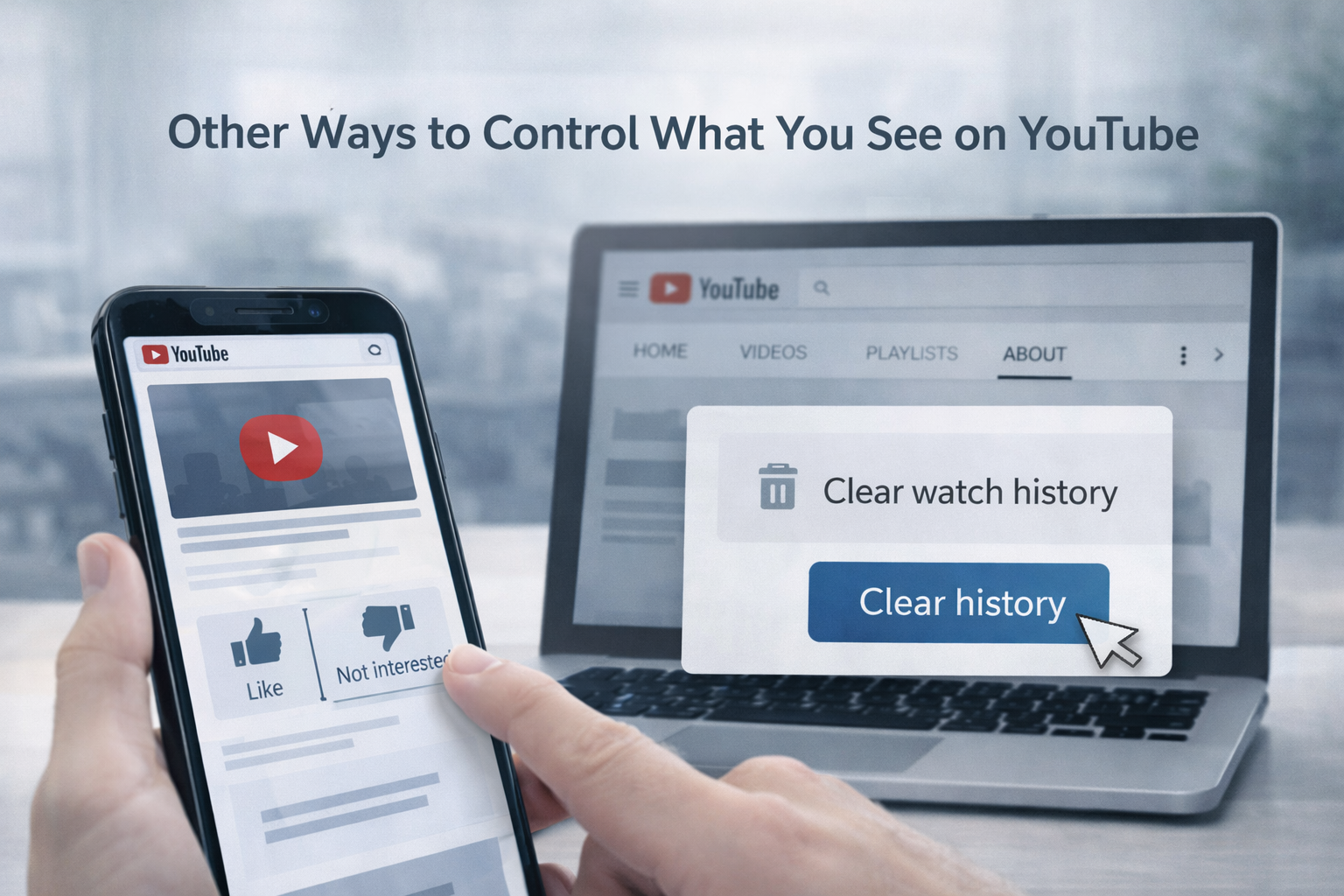
Blocking channels is not the only way to shape your feed. Clearing or managing your watch history can significantly affect recommendations.

Marking videos as “Not interested” and engaging more with content you enjoy helps the algorithm better understand your preferences over time.

If you also want to save videos for offline viewing, you can use an online YouTube downloader to download videos quickly and easily.


Quick Summary: How to Block YouTube Channels

To control your feed, open a channel you dislike, use the block option, and confirm your choice. Learning how to block YouTube channels allows you to reduce unwanted recommendations and improve your overall YouTube experience.

If you prefer higher quality downloads, a YouTube video downloader HD option lets you save videos in better resolution for offline viewing.

Conclusion

Understanding how to block YouTube channels gives you full control over your viewing environment. With a few simple actions, you can protect younger viewers, reduce distractions, and focus on content that truly matters. When combined with other recommendation tools, blocking channels helps create a more personalized and enjoyable YouTube experience.

Frequently Asked Questions

Can I unblock a YouTube channel later? Yes, blocked channels can be managed and unblocked through your account settings at any time.

Will blocking a channel remove all its videos? Blocking stops recommendations but does not remove videos accessed through direct links.

Is blocking available on all devices? Yes, blocking works on both mobile and desktop with minor interface differences.

For official and up-to-date guidance on managing content and blocking channels, you can refer to the YouTube Help Center for detailed instructions and settings explanations.

詳細
How to Speak to a Person at YouTube TV (Real Support Options Explained)

How to Speak to a Person at YouTube TV (Real Support Options Explained)

Navigating the world of streaming services can be overwhelming, especially when you need assistance. For users of YouTube TV, knowing how to speak to a person at YouTube TV can make a real difference when problems occur. Automated systems handle basic requests, but many situations still require human support. This guide explains how to reach a real person and how to do it the right way.

Understanding the YouTube TV Support Structure

YouTube TV uses an automation-first support system. This often confuses users searching for how to speak to a person at youtube tv support, because live options are not always visible. Support availability depends on your account status, the issue you select, and current demand.

Most users reach a dead end simply because they choose the wrong category. Selecting the correct issue is the key step that unlocks human assistance.

Why Reaching a Live Person at YouTube TV Can Be Difficult

YouTube TV intentionally prioritizes self-help tools to reduce wait times. Live chat and phone support are only shown after certain conditions are met.

This design can make how to speak to a person at YouTube TV feel complicated, even though real support does exist. Once you understand how the system filters requests, the process becomes much easier.

How to Access YouTube TV Support Options

Start by logging into your account and opening the Help Center. Many users looking for how to speak to a person at YouTube TV help center miss the fact that support options are limited without logging in.
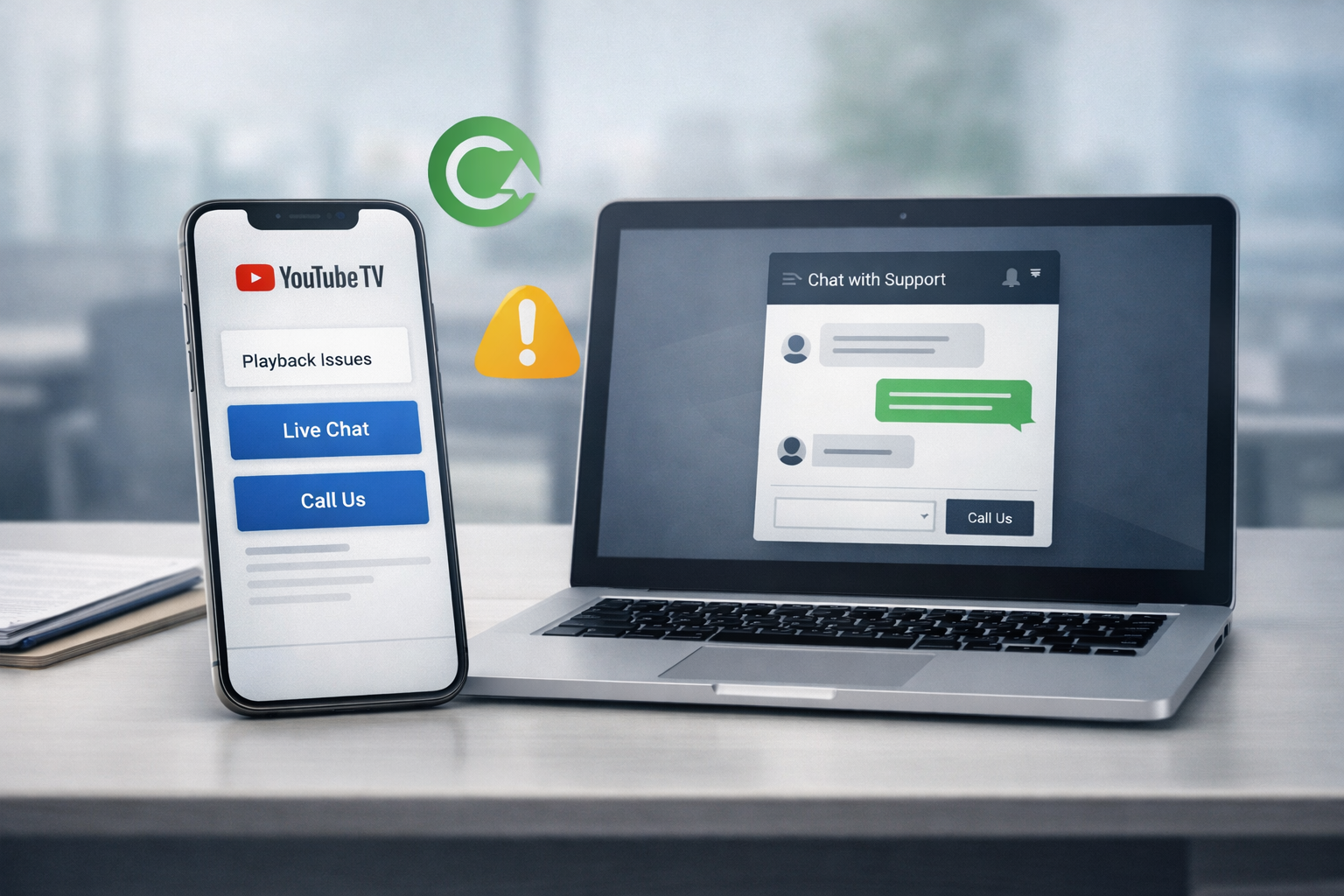
Choose a topic such as billing, playback problems, or account access. As you move forward, YouTube TV may offer live chat or phone support, allowing you to connect with a how to speak to a person at YouTube TV representative.

Step-by-Step: How to Speak to a Person at YouTube TV

If you want direct help, following the correct steps matters. Many users fail because they skip small but important details. Below is the most reliable step-by-step method.

Step 1: Log in to your YouTube TV account using the email linked to your subscription. Support options are limited if you are not signed in.

Step 2: Go to the Help Center and select an issue such as billing, streaming errors, or account access. Choosing the right category is critical.

Step 3: Follow the on-screen prompts until you reach the contact section. At this stage, YouTube TV may display live chat or phone support.

Step 4: Select live chat for faster responses or phone support for urgent billing matters. This is where how to speak to a person at YouTube TV becomes possible.

Step 5: Clearly explain your issue and provide requested account details. Keeping your explanation short and focused speeds up resolution.

If you prefer saving multiple videos at once, the YouTube playlist downloader allows you to download entire playlists quickly and efficiently.


YouTube TV Live Support Availability and Working Hours

Live support is not available around the clock. Chat and phone options usually appear during standard business hours and may disappear during peak demand.

If you cannot see live options, trying again later often helps, especially if you are searching for how to speak to a person at YouTube TV phone number.

What to Do If YouTube TV Live Chat Is Not Available

If live chat does not appear, refresh the page, switch devices, or try the mobile app. Selecting a different issue category can also trigger live assistance.

These simple actions often help users connect with how to speak to a person at youtube tv assistance without long wait times.

The Fastest Way to Reach YouTube TV Customer Support

Live chat is usually the fastest option for technical issues, while phone support works best for billing and subscription problems. Email or ticket-based support should be used only for non-urgent requests.

Understanding how to speak to a person at YouTube TV through real-time channels can save hours of frustration.

If you are also looking to save content for offline viewing, you can try the YouTube video downloader to easily download videos in just a few steps.

Information You Should Prepare Before Contacting YouTube TV Support

Have your account email, billing details, and device information ready before contacting support. Clear details help the representative assist you faster.

This preparation reduces delays and avoids repeating the same information.

Issues That YouTube TV Support Resolves the Fastest

Billing errors, subscription changes, playback problems, and login issues are typically resolved quickly. These are common cases with clear solutions.

More complex matters, such as regional restrictions or device compatibility, may require additional time.

Quick Summary: How to Speak to a Person at YouTube TV

Log in to your account, select the correct issue, and look for live chat or phone options during active hours. If support is unavailable, try again later or change devices. Following these steps makes how to speak to a person at YouTube TV straightforward.


Conclusion

Knowing how to speak to a person at YouTube TV can save both time and stress. While automated tools handle simple tasks, human support remains the fastest way to resolve billing and account issues. By following the correct steps and contacting support at the right time, users can enjoy a smoother and more reliable streaming experience.

For the most accurate and up-to-date support options, you can visit the official YouTube TV Help Center to explore live chat, phone support, and guided assistance.

詳細
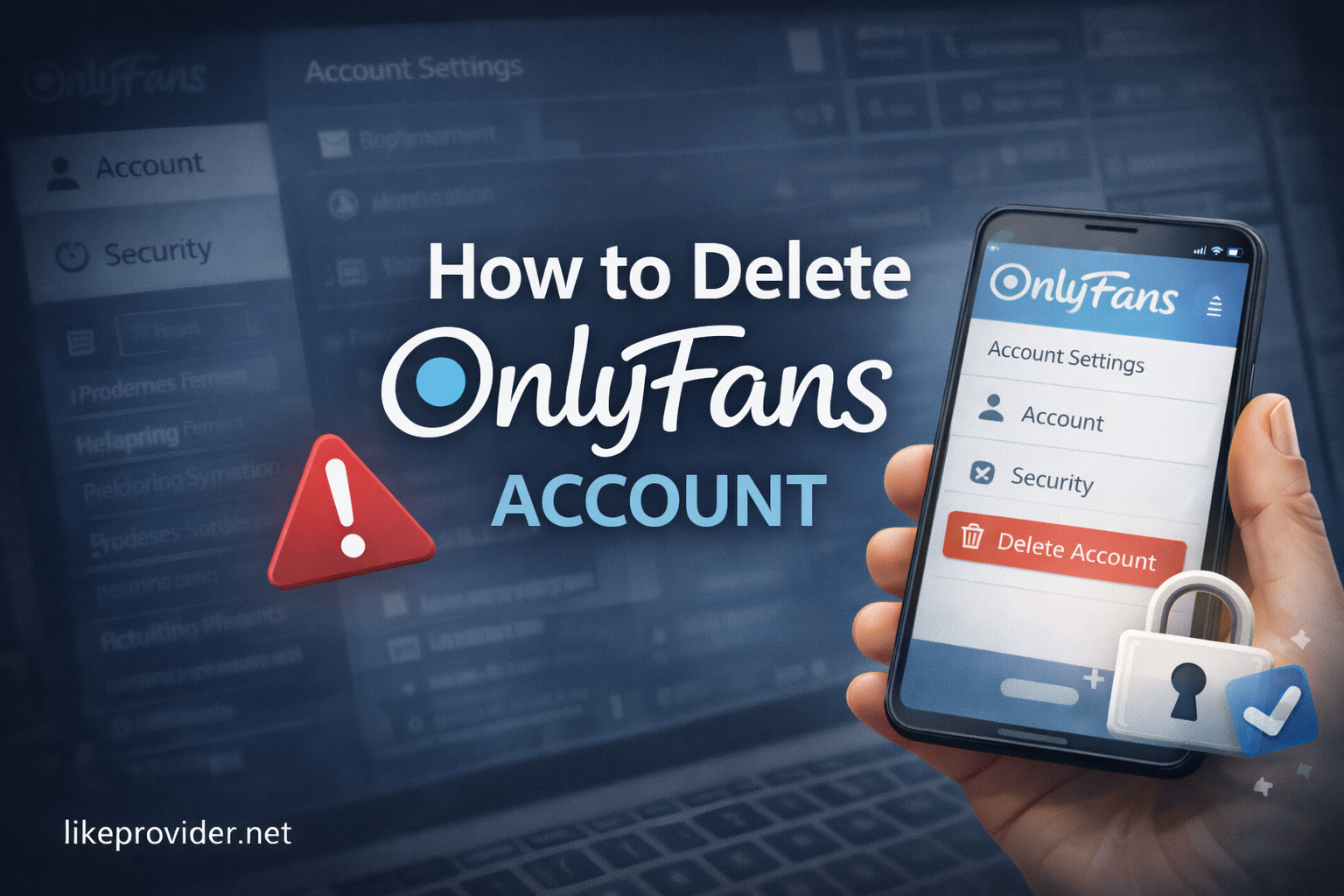
How to Delete OnlyFans Account (Step-by-Step Guide 2026)

How to Delete OnlyFans Account (Step-by-Step Guide 2026)

Deciding to delete your OnlyFans account is not just a technical step; it can directly affect your online presence, income flow, and digital footprint. Before moving forward, it’s important to understand what changes once the account is removed. Many users look for how to delete OnlyFans account step by step because the process involves confirmation stages and permanent consequences. If your goal is how to delete OnlyFans account permanently, you should be aware that most actions cannot be reversed once completed.
  • Income Impact: Active subscriptions stop immediately and future earnings are lost.
  • Subscriber Relationships: All messages and connections disappear.
  • Content Accessibility: Photos, videos, and posts are removed from your profile.

For users who manage their profile primarily on a phone, understanding how to delete OnlyFans account on mobile is equally important to avoid missing any required steps.

Common Reasons Why People Choose to Delete an OnlyFans Account

There is rarely a single reason behind deleting an account. Some creators decide to step away due to privacy concerns, while others feel the platform no longer aligns with their goals. Financial expectations may not always match reality, and managing content long-term can feel overwhelming. In some cases, users simply want to reduce their digital footprint and regain control over where their content exists online.

Step-by-Step Process to Successfully Delete Your OnlyFans Account

The deletion process becomes much easier once you know where to look. After logging in, head to your account settings and follow the instructions provided. Users often ask how to delete your onlyfans account without email, but for security reasons, verification is usually required. If time matters, the platform offers a direct flow for those searching how to delete onlyfans account quickly. The final confirmation step ensures that how to delete onlyfans account and data is completed correctly.


Deleting vs Deactivating an OnlyFans Account: What’s the Difference?

Deleting and deactivating an account are often confused, yet they serve very different purposes. Deleting an account permanently removes content, subscribers, and access, while deactivation is typically temporary and allows you to return later. If you are unsure whether this decision is final, deactivation may be a safer option. Understanding this difference can prevent regret later on.

Deleting an OnlyFans Account on Mobile vs Desktop

The steps to delete an account are similar across devices, but the layout can feel different. On mobile, some menu options are nested deeper, which can make the deletion setting harder to find. Desktop users usually see clearer navigation and fewer hidden sections. Knowing this distinction helps users avoid frustration, especially when attempting how to delete OnlyFans account on mobile for the first time.

Important Considerations Before Deleting Your OnlyFans Profile

Before committing to how to delete OnlyFans account for good, it’s worth pausing to reflect on long-term outcomes. Once deleted, your content and history cannot be recovered. Any remaining balance or pending payments may also be affected. Many users later realize they wanted a break rather than a permanent exit, which is why thinking ahead matters.

Common Mistakes to Avoid When Deleting an OnlyFans Account

Rushing through the process can lead to avoidable problems. Some users attempt deletion while subscriptions are still active, while others forget to check pending balances. Skipping verification steps or closing the page too early may delay completion. Taking a few extra minutes to review each screen helps ensure the process finishes smoothly.

Step-by-Step: How to Delete Your OnlyFans Account

How to Delete OnlyFans Account (Desktop)

  1. Go to OnlyFans.com and log in to your account.

  2. Click your profile icon in the top-right corner.

  3. Select Settings from the menu.

  4. Open the Account section.

  5. Scroll down and click Delete Account.

  6. Enter the verification code sent to your email.

  7. Confirm the deletion request.

Once confirmed, your account enters the deletion process and will be permanently removed after the platform’s review period.


How to Delete OnlyFans Account on Mobile

  1. Open your mobile browser and log in to OnlyFans.

  2. Tap the menu icon and go to Settings.

  3. Select Account.

  4. Tap Delete Account at the bottom of the page.

  5. Verify your identity using the email code.

  6. Confirm your request to delete the account.

Mobile steps are the same as desktop, but the Delete Account option may be harder to spot due to collapsed menus.


Important Notes Before Final Confirmation

  • All active subscriptions are canceled immediately

  • Remaining balances may be forfeited

  • Deleted accounts cannot be recovered

  • The same username may not be reusable right away

If the Delete Account button does not appear, it usually means:

  • You have an active subscription

  • A pending payout exists

  • Email verification is incomplete

How to Safeguard Your Data Before Account Deletion

Before deleting your account, it’s wise to protect anything you may need later. Review what personal information you’ve shared and download copies of important content. Backing up photos or videos ensures you are not locked out unexpectedly. It’s also a good idea to review linked payment methods and cancel any remaining subscriptions manually.

If you want to save your content before deleting your account, using an OnlyFans video downloader can help you back up videos for personal reference.

Can You Create a New OnlyFans Account After Deletion?

This is one of the most common questions users ask after learning how to delete OnlyFans account permanently. In most cases, creating a new account is possible, but usernames and emails may not always be reusable immediately. Waiting periods and platform policies can change, so it’s best not to assume you can return instantly with the same identity.


What to Expect After Deleting Your OnlyFans Account

After completing how to delete onlyfans account, your profile and content will no longer be visible to others. While most data is removed, certain records may be retained temporarily to comply with legal or financial regulations. This can feel confusing for users expecting instant erasure, which is why understanding this beforehand helps manage expectations.

Quick Summary: What Happens When You Delete Your OnlyFans Account

Deleting your account permanently removes your profile, content, and subscriber access. Earnings stop immediately, and recovery is generally not possible. Some data may remain stored briefly for compliance purposes, but public visibility ends once the process is completed.

Managing Your Online Presence After Account Deletion

Leaving a platform often encourages users to rethink their broader online presence. Reviewing other social accounts, privacy settings, and shared content can help you regain control over your digital identity. This step ensures that deleting one account becomes part of a larger, intentional decision rather than an isolated action.

If you’re rethinking your online strategy after deleting an account, exploring a best SMM panel can help you manage visibility and engagement across other social platforms more effectively.

Conclusion

Understanding how to delete your OnlyFans account allows you to make a confident and informed choice. The process itself is manageable, but the impact can be lasting. By taking time to review your options, protect your data, and understand what comes next, you can step away knowing you’ve handled the transition responsibly and on your own terms.

If you want to review the most accurate and up-to-date instructions, you can always check the official OnlyFans account deletion guide provided directly by the platform.

詳細