Quick Answer: Three ways to repost on Instagram:
- Story (when you’re tagged): DMs → open the story → Add to Your Story → post.
- Feed post or Reel: Tap Share (paper plane) → Repost → Add. Shows in your Reposts tab.
- Reel to Story: Tap Share on the Reel → Add post to your story → post.
Always give credit. With or without apps. Instagram Help – Repost.
How to Repost on Instagram (2026) – Story, Feed & Reels Methods
Repost Stories, Feed posts, and Reels—step-by-step, with or without apps
Learn how to repost on Instagram in 2026: repost Instagram Story, repost Feed post, and repost Instagram Reel using the official Repost button and Add post to your story. This guide covers native methods and alternatives without losing quality. Pair with our Instagram Reel dimensions, Instagram Story dimensions, Instagram Reels caption generator, and best time to post on Instagram.
What You'll Find on This Page
If you're looking for how to repost on Instagram, repost Instagram story, or repost Instagram reel, you're in the right place. This 2026 guide covers:
- How to repost an Instagram Story – When you're tagged (Add to Your Story) and when you're not.
- How to repost a Feed post – Using the official Repost button so the post appears in your profile's Reposts tab.
- How to repost an Instagram Reel – Repost to profile and Add post to your story so the Reel appears as a sticker in your Story.
- Reposting with or without apps – Native methods vs third-party repost apps and screen recording; without losing quality.
- Giving credit and copyright – Why and how to credit the original creator when you repost.
- Quick reference table and FAQ – All repost on Instagram methods in one place.
Use the table of contents to jump to the section you need. For size and format, see our Instagram Reel dimensions, Instagram Reel length, and Instagram Story dimensions.
How to Repost an Instagram Story
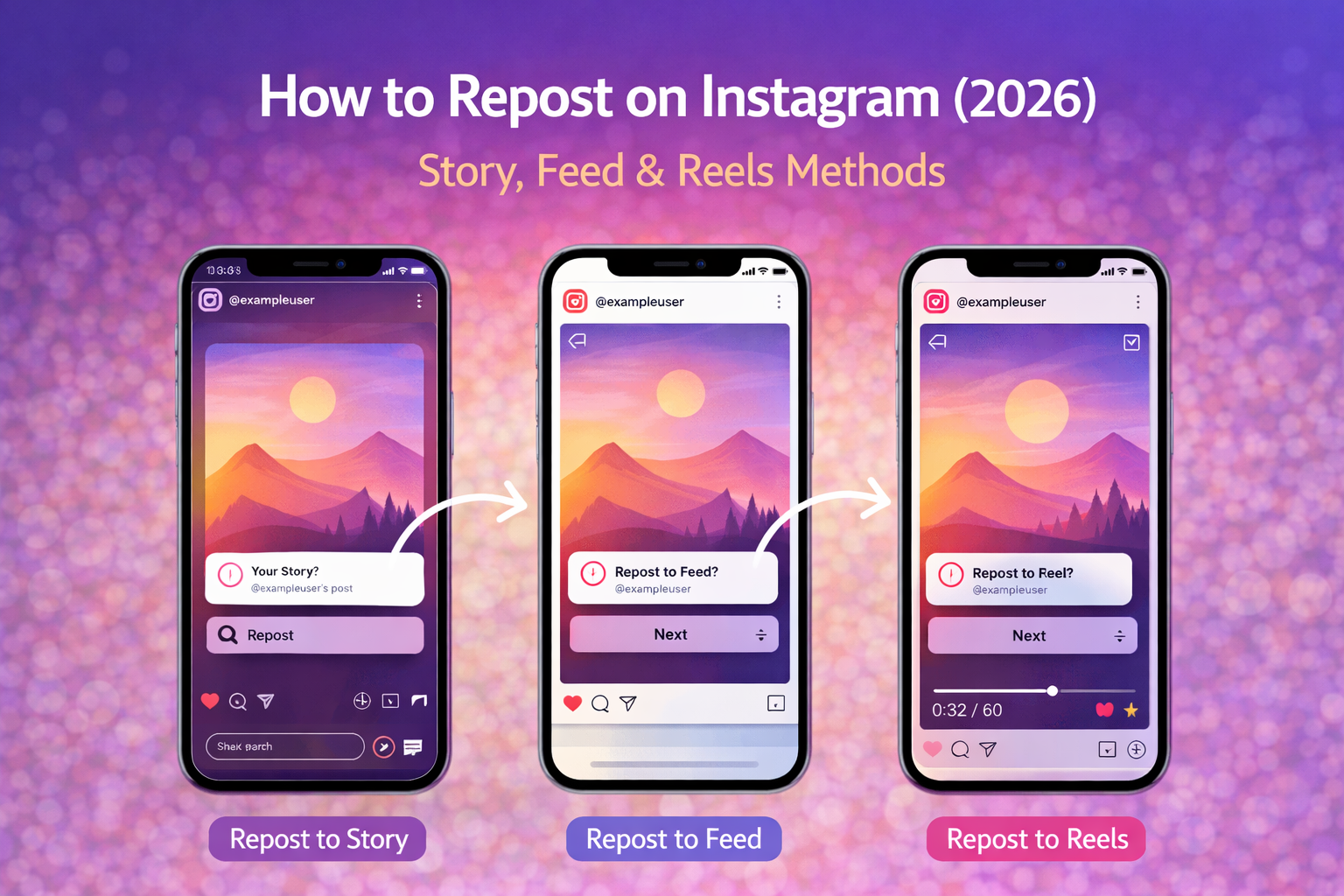
To repost an Instagram Story when you are tagged: (1) Open the Instagram app and go to your DMs (direct messages). You'll see a message like “[Username] mentioned you in their story.” (2) Tap that message to open the Story. (3) Tap Add to Your Story at the bottom. (4) You can add text, stickers, or music; then tap Your Story to post. The Story will appear on your profile as a repost with attribution to the original creator.
If you are not tagged in the Story, you cannot repost it directly with “Add to Your Story” unless the creator has shared it with you in a way that allows that. In that case, options include asking the creator to tag you, or using Share to send the story to someone (which doesn’t repost it to your Story). For Story specs and dimensions, see our Instagram Story dimensions and Instagram post size.
Repost to story Instagram is one of the most common “how to repost on Instagram” searches; the tagged method above is the official, policy-safe way. Pair reposted Stories with good timing using our best time to post on Instagram and Instagram caption generator for your own content.
How to Repost a Feed Post on Instagram
To repost a Feed post on Instagram in 2026: (1) Open the post you want to repost. (2) Tap the paper plane (Share) icon. (3) Tap Repost. (4) Optionally add a thought in the “Add a thought…” bubble. (5) Tap Add. The reposted post will appear in a dedicated Reposts tab on your profile; your followers may see it in their feed as a repost from you, with the original creator linked.
The Repost option only appears when the original creator has allowed reposts for that post. If you don’t see Repost, the creator has turned off reposting for that content. Always give credit; the native repost automatically links the original account. For more engagement on your own posts, use our Instagram Reels caption generator, Instagram caption generator, and Instagram highlight names.
How to Repost an Instagram Reel
You can repost an Instagram Reel in two main ways. (1) Repost to your profile (Reposts tab): Open the Reel → tap the paper plane (Share) → tap Repost → add an optional thought → tap Add. The Reel appears in your profile’s Reposts section. (2) Share Reel to your Story: Open the Reel → tap the paper plane → tap Add post to your story. The Reel will appear as a sticker or clip in your Story; you can move it and add text, then tap Your Story to post.
Both options require that the creator has allowed reposts. If Repost or Add post to your story is missing or grayed out, that Reel doesn’t allow reposting. For Reel format and length, see our Instagram Reel dimensions and Instagram Reel length. For captions when you create your own Reels, use our Instagram Reels caption generator.
Reposting on Instagram With or Without Apps
With the app (native): Use the built-in Repost button for Feed posts and Reels, and Add to Your Story for tagged Stories or Add post to your story for Reels. This keeps quality and attribution; reposts appear in your Reposts tab and link to the original creator.
Without the built-in Repost button: If you need to share a post when Repost isn’t available (e.g. creator disabled it), you can send the post to yourself via DM and then share from there, or use a third-party repost app. Third-party apps often work by saving the post and re-uploading; use only trusted apps and always credit the original creator and respect copyright. Screen recording a Reel and posting it as your own without permission can violate guidelines—prefer the official repost when possible.
This way you can repost on Instagram without relying only on the native button when the creator hasn’t allowed it, while staying policy-safe by giving credit. For more Instagram growth, pair with our best time to post on Instagram, Instagram post size, and Instagram highlight names.
Giving Credit & Copyright When You Repost on Instagram
When you repost on Instagram, always give credit to the original creator. The official Repost button does this automatically by linking the original post and account. When you use Add post to your story or add a Reel to your Story, the Reel sticker usually shows the creator’s handle; don’t remove it.
If you repost using other methods (e.g. third-party app or screenshot), mention the creator in your caption or in the Story (e.g. @username or “Credit: @username”). Never remove watermarks or attribution. Respect copyright: only repost when the creator allows it, and avoid reposting private or restricted content. This keeps you within Instagram’s repost guidelines and builds trust. For your own content, use our Instagram caption generator and Instagram Reels caption generator.
Quick Reference: How to Repost on Instagram (2026)
Use this table for all repost on Instagram methods at a glance:
| Content | Method | Steps |
|---|---|---|
| Story (you’re tagged) | Add to Your Story | DMs → open story → Add to Your Story → Your Story |
| Feed post | Repost | Paper plane → Repost → Add thought (optional) → Add |
| Reel to profile | Repost | Paper plane → Repost → Add thought (optional) → Add |
| Reel to Story | Add post to your story | Paper plane → Add post to your story → edit Story → Your Story |
| When Repost is off | DM to self / third-party app | Share to yourself or use repost app; always credit |
This is the complete how to repost on Instagram quick reference for 2026. For dimensions and timing, see our Instagram Reel dimensions, Instagram Story dimensions, and best time to post on Instagram.
FAQ: How to Repost on Instagram
How do I repost on Instagram?
To repost a Feed post or Reel: open the post, tap the paper plane (Share), tap Repost, add an optional thought, tap Add. The repost appears in a Reposts tab on your profile. To repost a Story when you are tagged: open the DM, tap Add to Your Story, then post.
How do I repost an Instagram Story?
If you are tagged in the Story: open your DMs, tap the message that you were mentioned in a story, tap Add to Your Story, customize if you want, then tap Your Story. If you are not tagged, you can only repost if the creator has shared it to you or the app allows share to story for that content.
How do I repost an Instagram Reel?
Tap the paper plane on the Reel, then tap Repost to add it to your profile’s Reposts tab, or tap Add post to your story to share the Reel to your Story as a sticker. The creator must allow reposts for the Repost button to appear.
Can I repost someone else's Instagram post?
Yes, if the creator allows it. Open the post, tap Share, then Repost. If Repost is not available, the creator has disabled reposts. Always give credit. Reposts appear in a dedicated Reposts section on your profile.
Why don't I see the Repost button on Instagram?
The Repost option only appears when the creator has allowed reposts for that post or Reel. Update your Instagram app to the latest version. If you still don’t see it, the account may have reposting turned off or your region may have a delayed rollout.
How do I repost on Instagram without the app?
Instagram’s native repost is in-app only. To share without the built-in Repost: send the post to yourself via DM and then share from there, or use a third-party repost app. Always credit the original creator and respect copyright.
Where do my reposts go on Instagram?
Reposts appear in a Reposts tab on your profile. Go to your profile and look for the Reposts section (wording may vary by app version). You can view, delete, or remove reposts from there.
Is it okay to repost on Instagram?
Yes, when the creator allows it and you give credit. Use the official Repost button when available so the original creator is linked. Avoid reposting private content or without permission to stay within Instagram’s guidelines and copyright.
How do I give credit when reposting on Instagram?
The native Repost button automatically links the original creator. When adding to Story or using other methods, mention the creator in your caption or in the Story (e.g. @username). Never remove watermarks or attribution.